Setting up an Option
Where to set up an Option
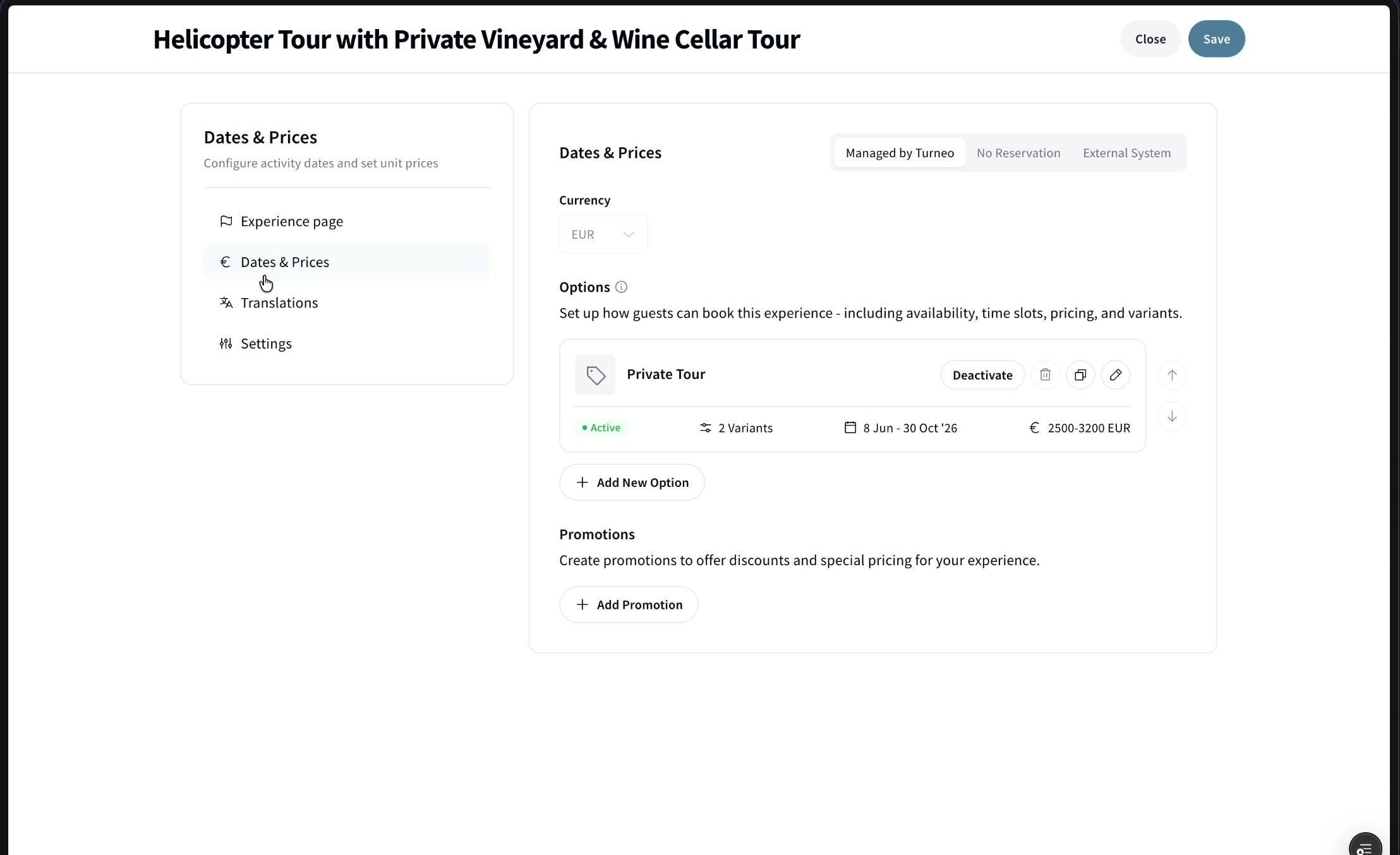
Open your experience, go to the Dates & Prices tab, and click Add New Option. At the top you can choose how the experience is booked: Managed by Turneo (full setup, covered here), No Reservation (just an info link), or External System (Bokun, Regiondo, etc.).
The setup opens as a wizard with seven steps: Basic Details, Availability, Pricing & Variants, Time Slots, Add-Ons, Guest Information, and Resources.
1️⃣ Basic Details
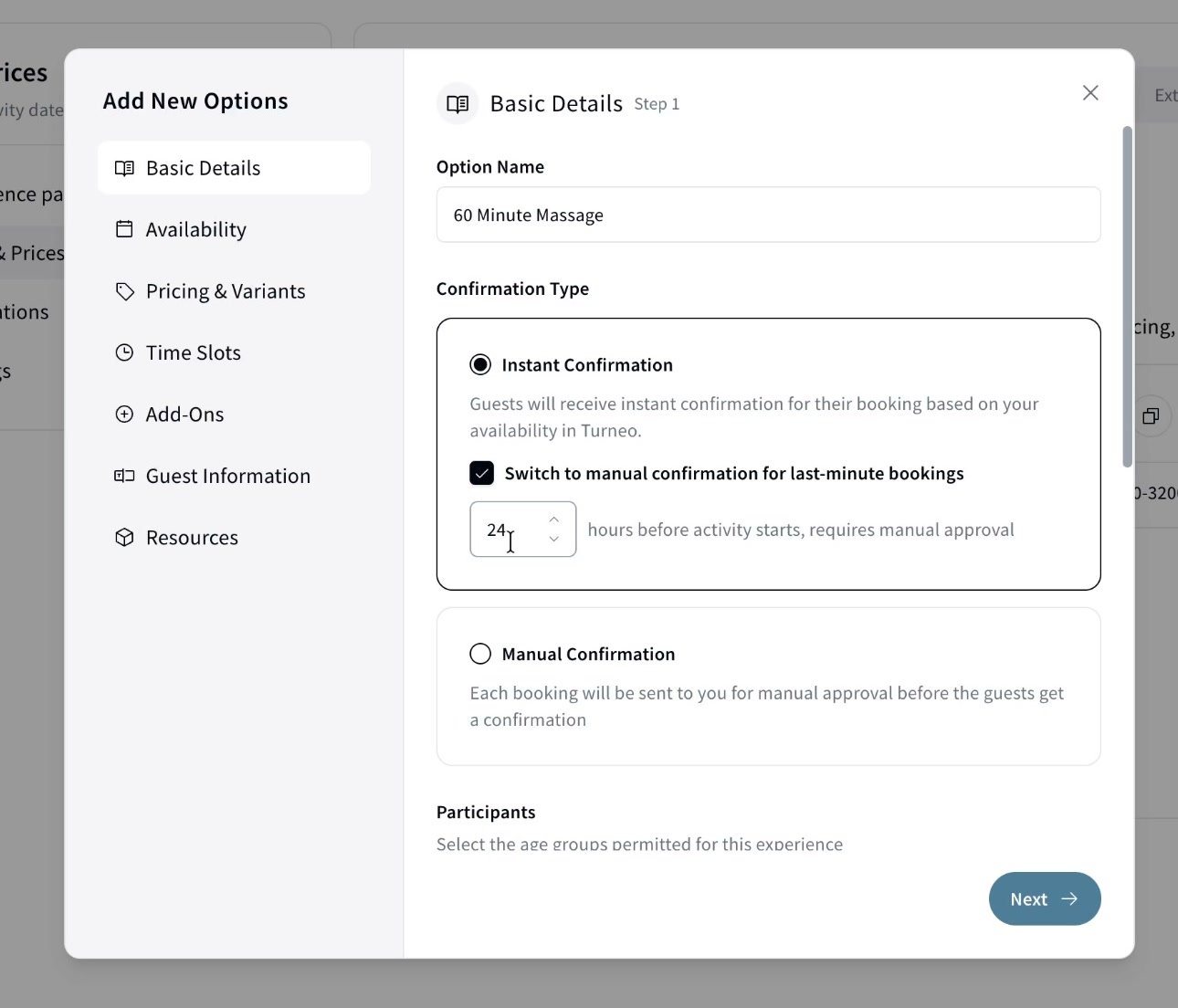
Option name & confirmation type. The Option name is what the guest selects (e.g. "60 Minute Massage" or "Transfer from Hotel to Airport"). Then choose a confirmation type:
- Instant Confirmation — guests are auto-confirmed based on your availability. Booking it means they're confirmed to go.
- Manual Confirmation — every booking is sent to you for approval before the guest is confirmed
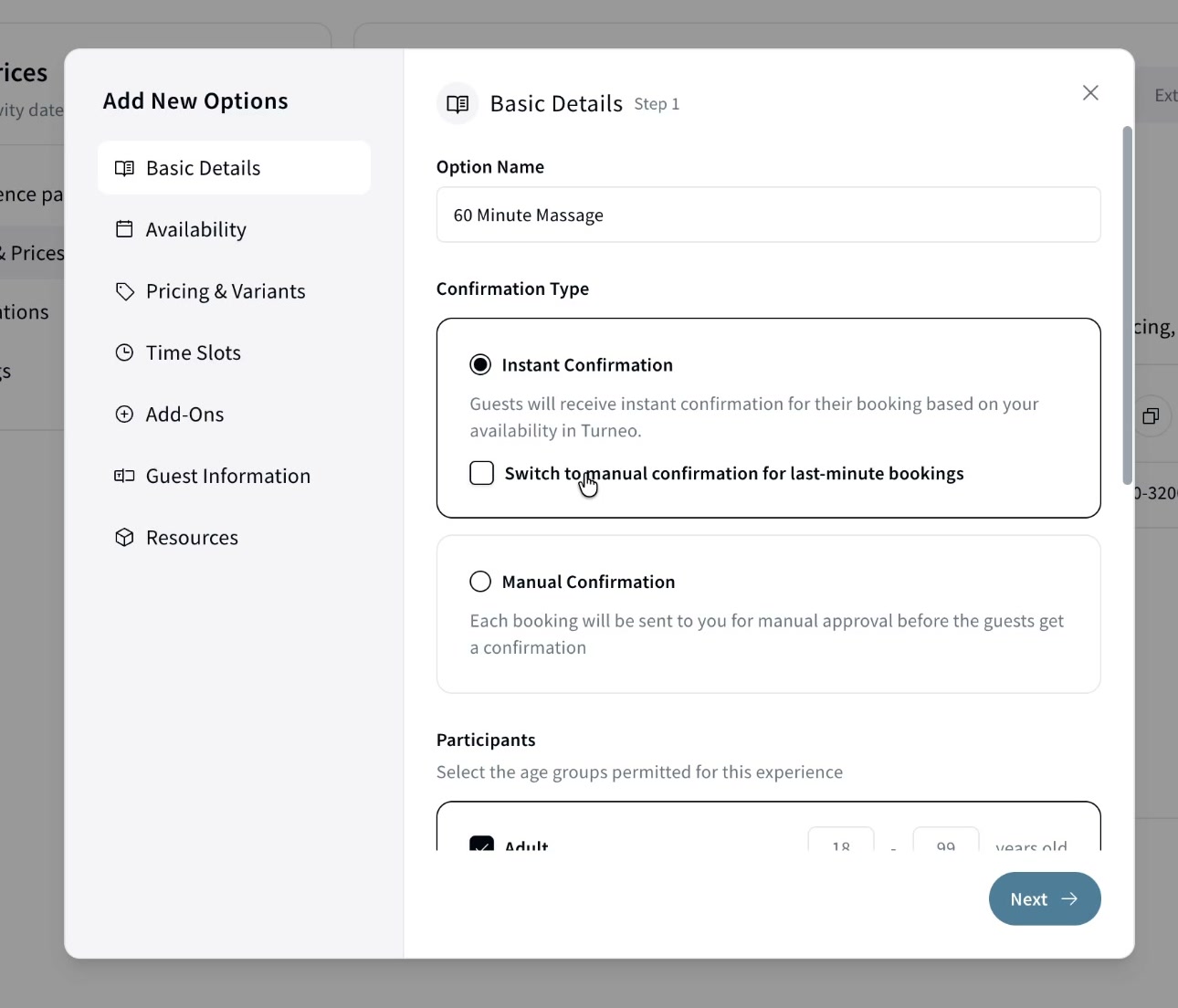
With Instant selected, you can optionally tick Switch to manual confirmation for last-minute bookings and set how many hours before the start time approval is required. So a booking made within, say, 24 hours of the start needs manual approval, while earlier bookings stay instant.
With Manual Confirmation selected instead, every booking waits for your approval before the guest is confirmed.
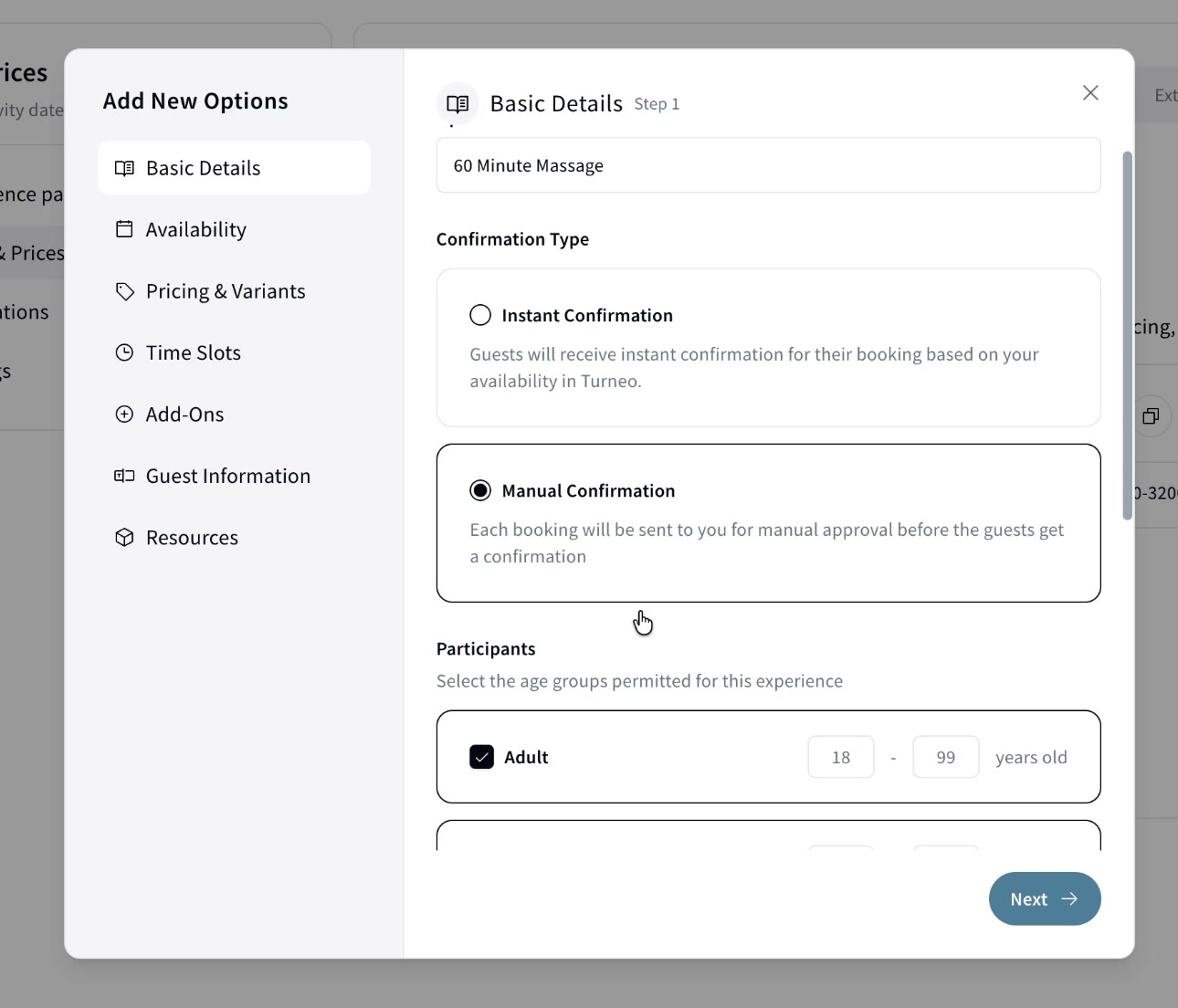
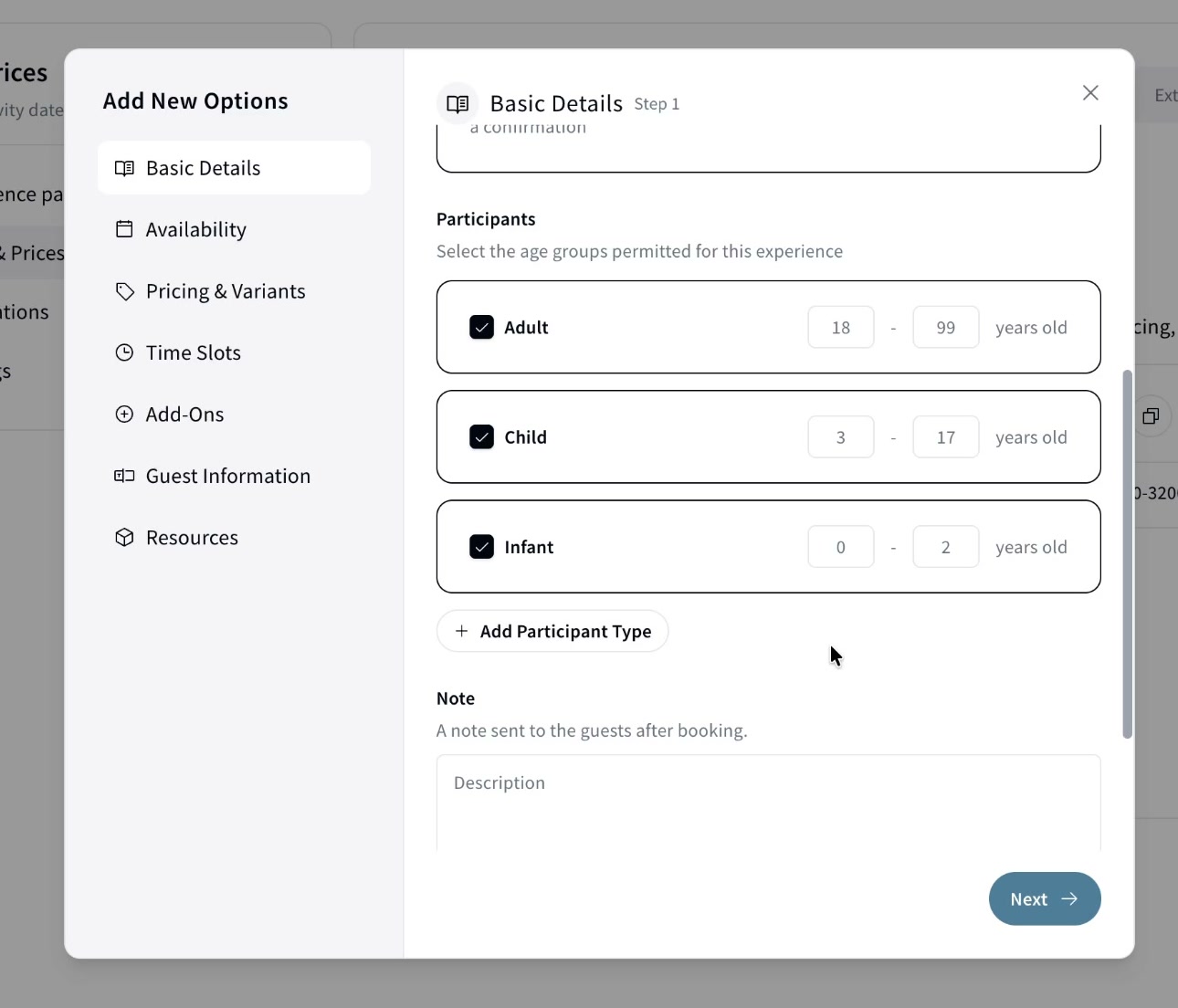
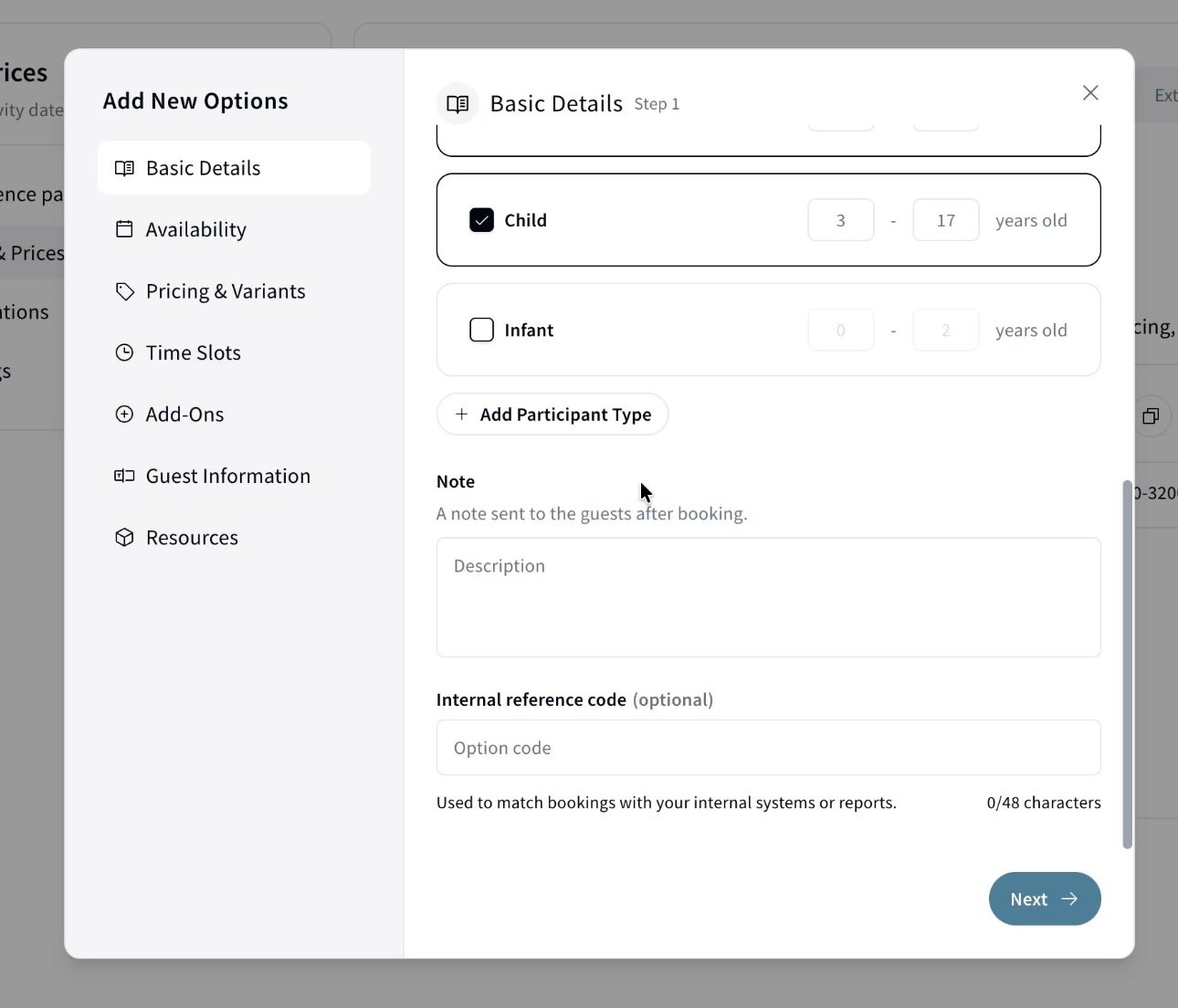
Participants. There are three default participant types, Adult, Child, and Infant, with predefined age ranges you can edit (e.g. set Child up to 15 instead of 17). If an experience can't accommodate a type (e.g. infants), uncheck it and guests won't be able to book it.
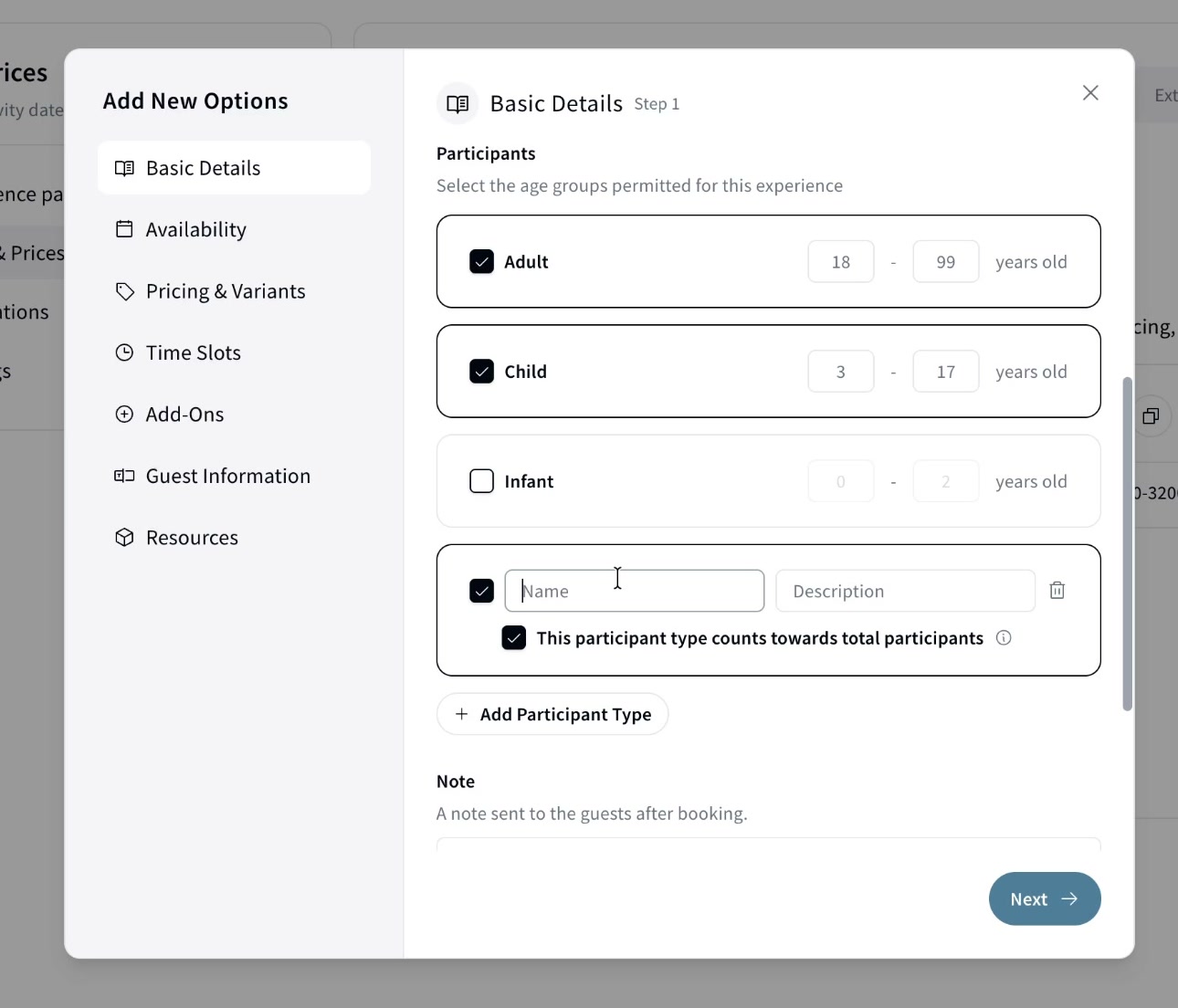
You can add a custom participant type (e.g. wheelchair users) with its own name and description. Each custom type has a counts towards total participants checkbox: when ticked, that type is charged (if you price per person) and counts toward any maximum; when unticked, it doesn't count towards pricing or availability. Infants never count in capacity. Custom types can be removed; the three defaults can only be deselected.
Note & internal reference code. Add a Note sent to guests after they book, and an optional Internal reference code to match bookings with your own systems or reports.
2️⃣ Availability
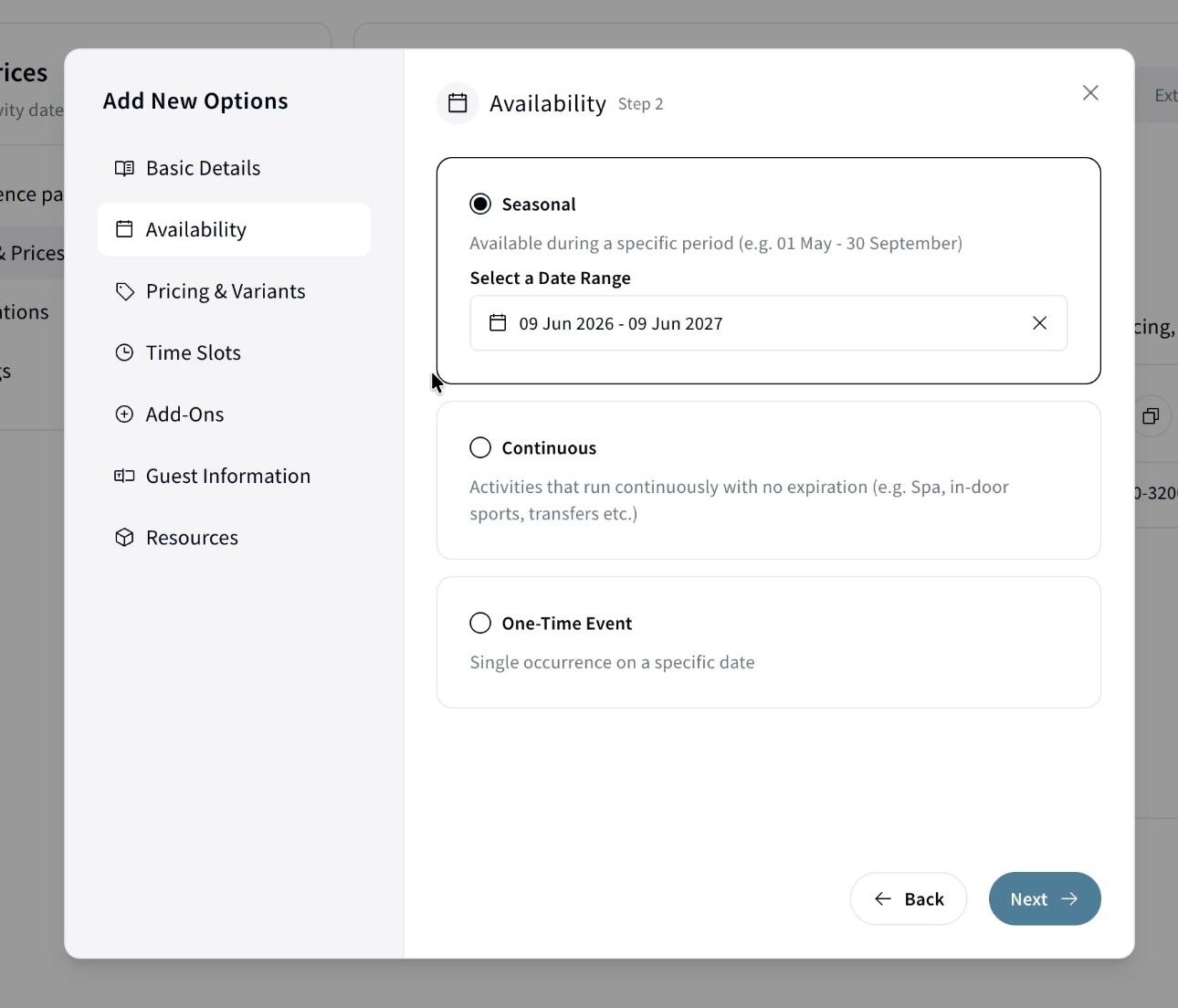
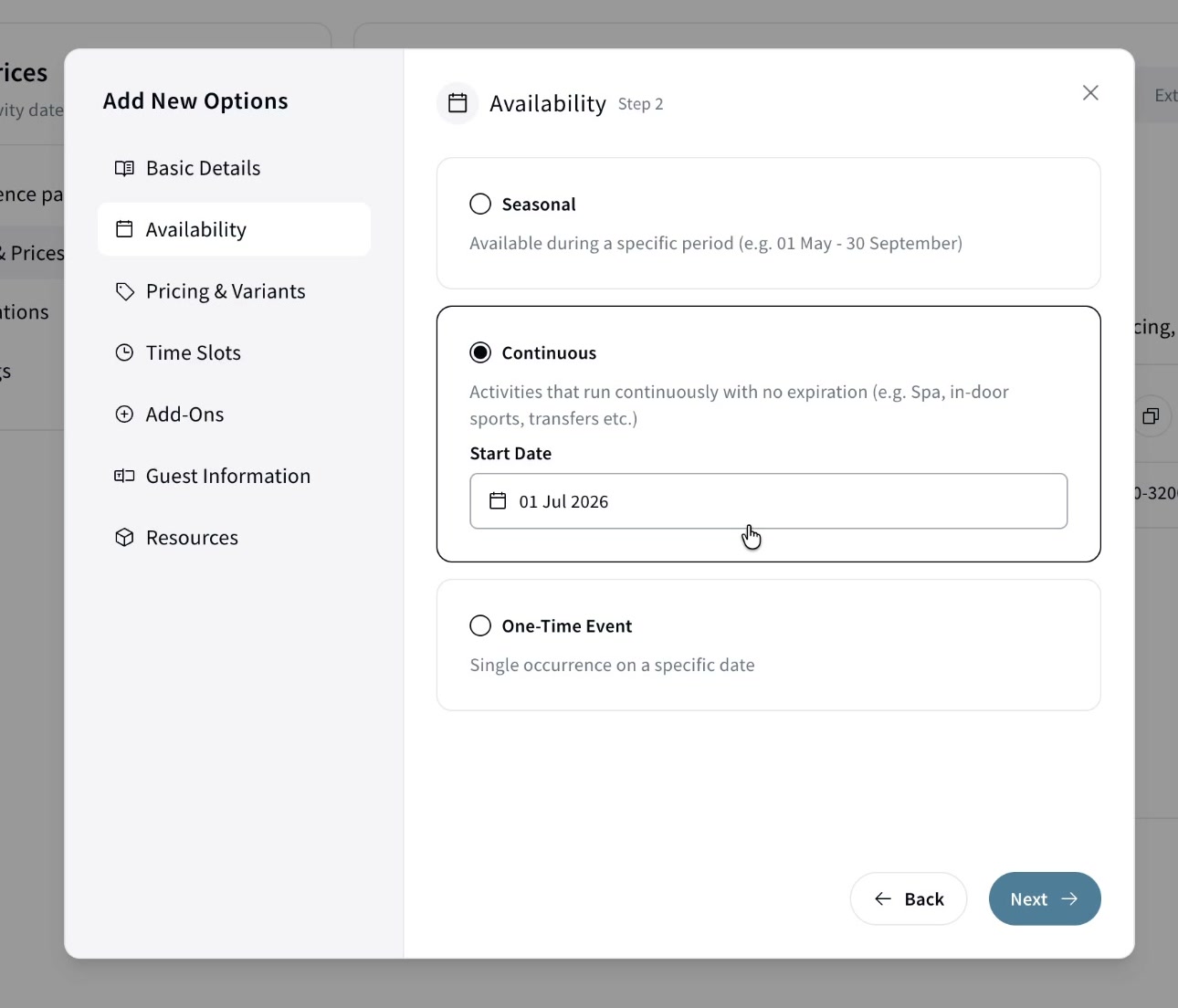
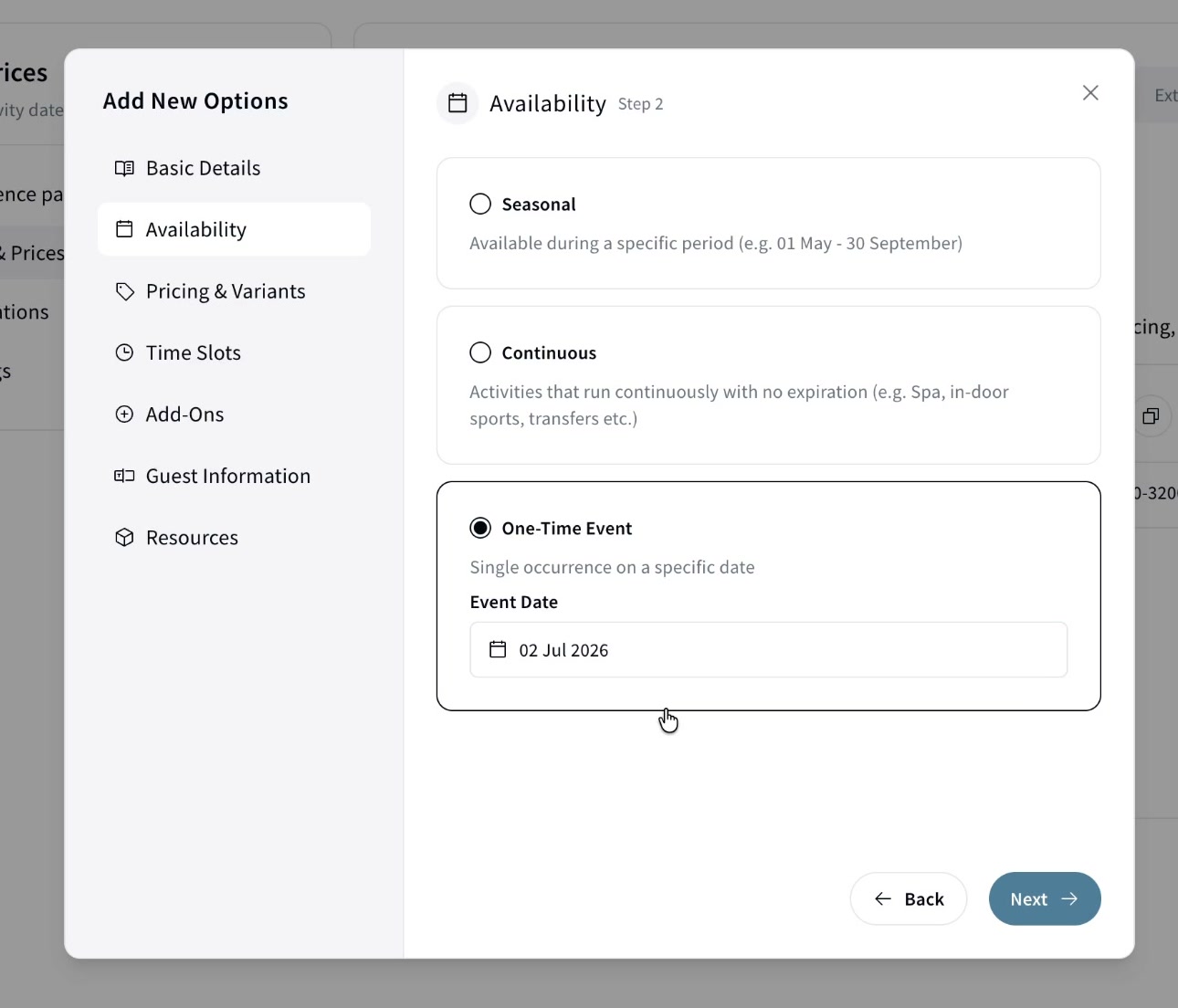
Choose one of three availability types:
- Seasonal — available during a specific period (e.g. 1 July to 31 August). After it ends, the option expires and isn't bookable.
- Continuous — runs year-round with no expiration (spa, indoor sports, transfers). You only set a start date.
- One-Time Event — a single occurrence on a fixed date. (For Seasonal and Continuous the guest picks the date; for a One-Time Event the date is set.)
3️⃣ Pricing & Variants
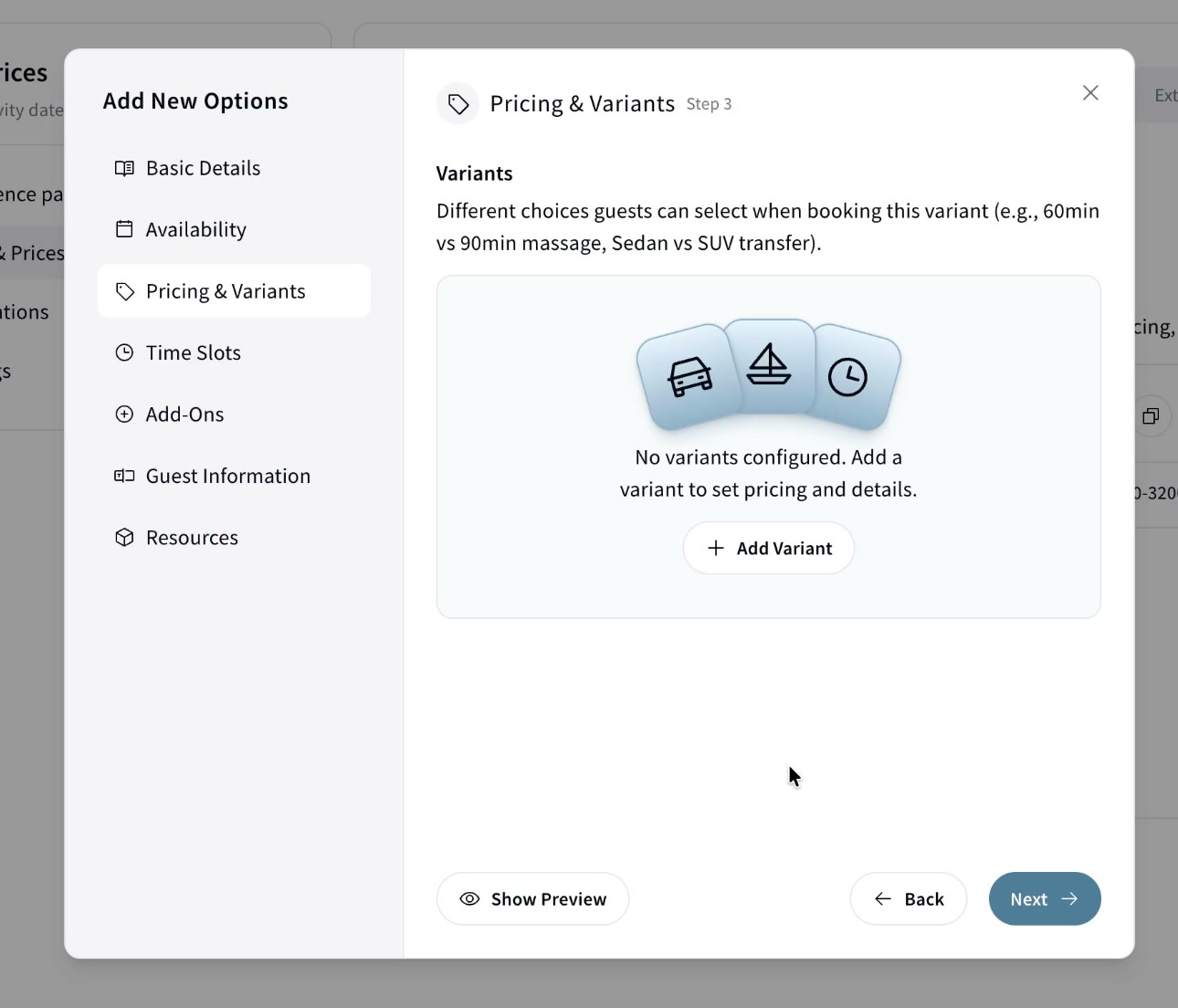
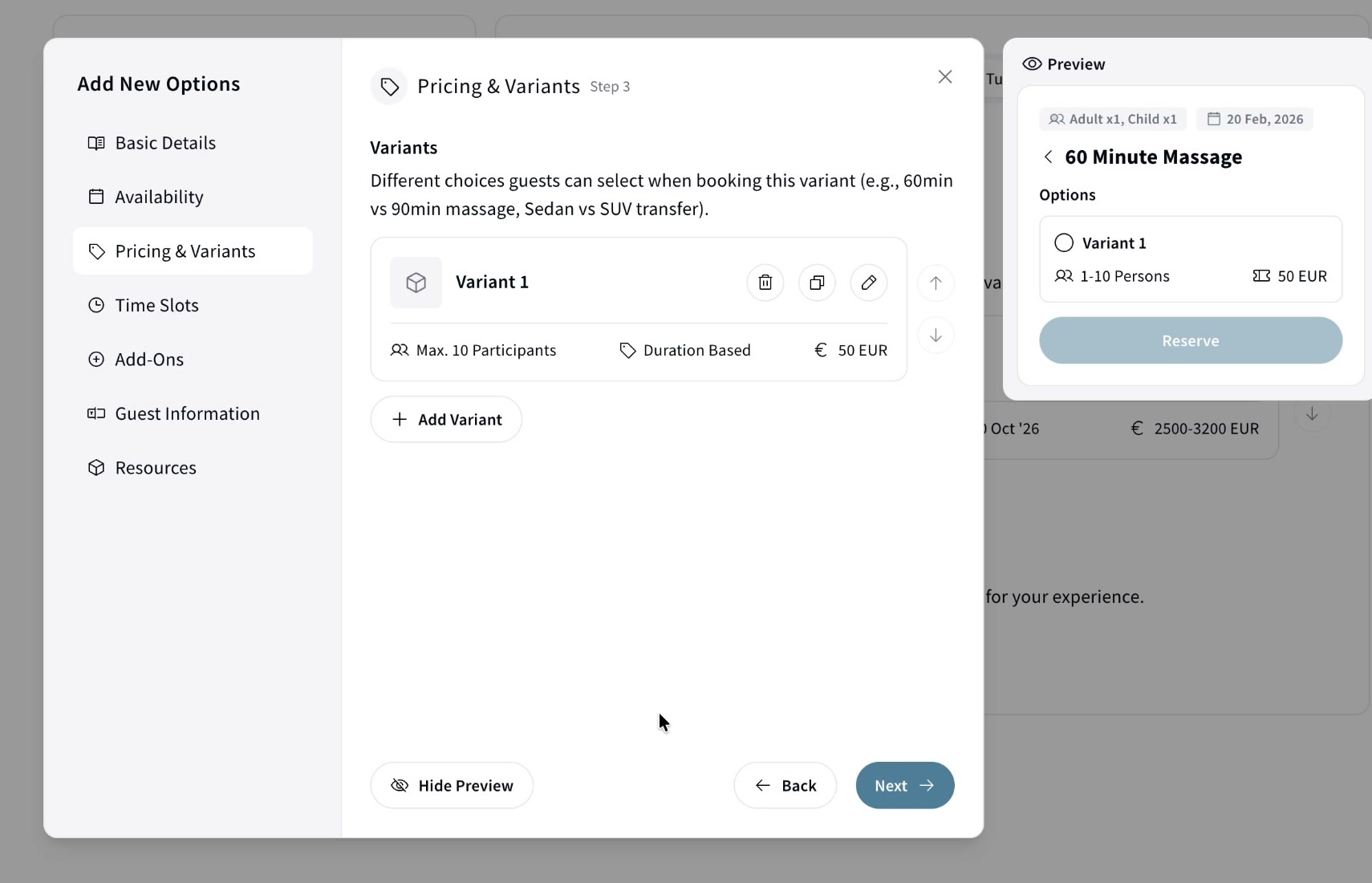
Variants are the different choices within this option (e.g. for a Hotel → Airport transfer, it would be Sedan vs SUV vs Van). Each variant has its own price and its own max participant count. If there's only one offering, you just add a single variant.
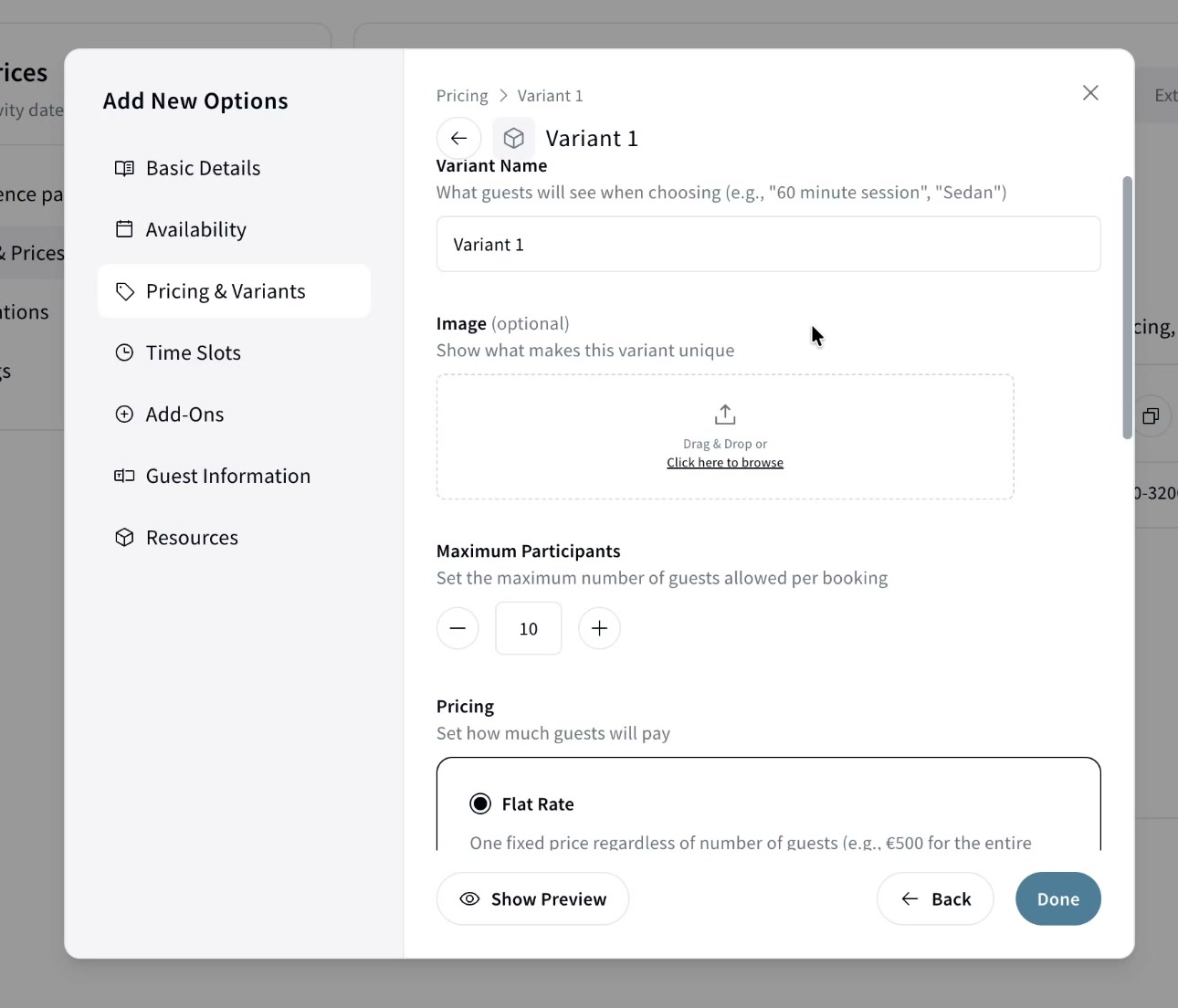
Variant details. Each variant has a Variant name (what guests see, e.g. "Sedan" or "60 minute session"), an optional image to show what makes it unique (useful when comparing variants), and Maximum participants, the most guests allowed in a single booking. For a car that fits four, that's 4; for a massage that takes two, that's 2.
⚠️ Max participants vs slot capacity. Max participants is the limit for one booking. Slot capacity (set in Time Slots) is the total across all bookings in a time slot.
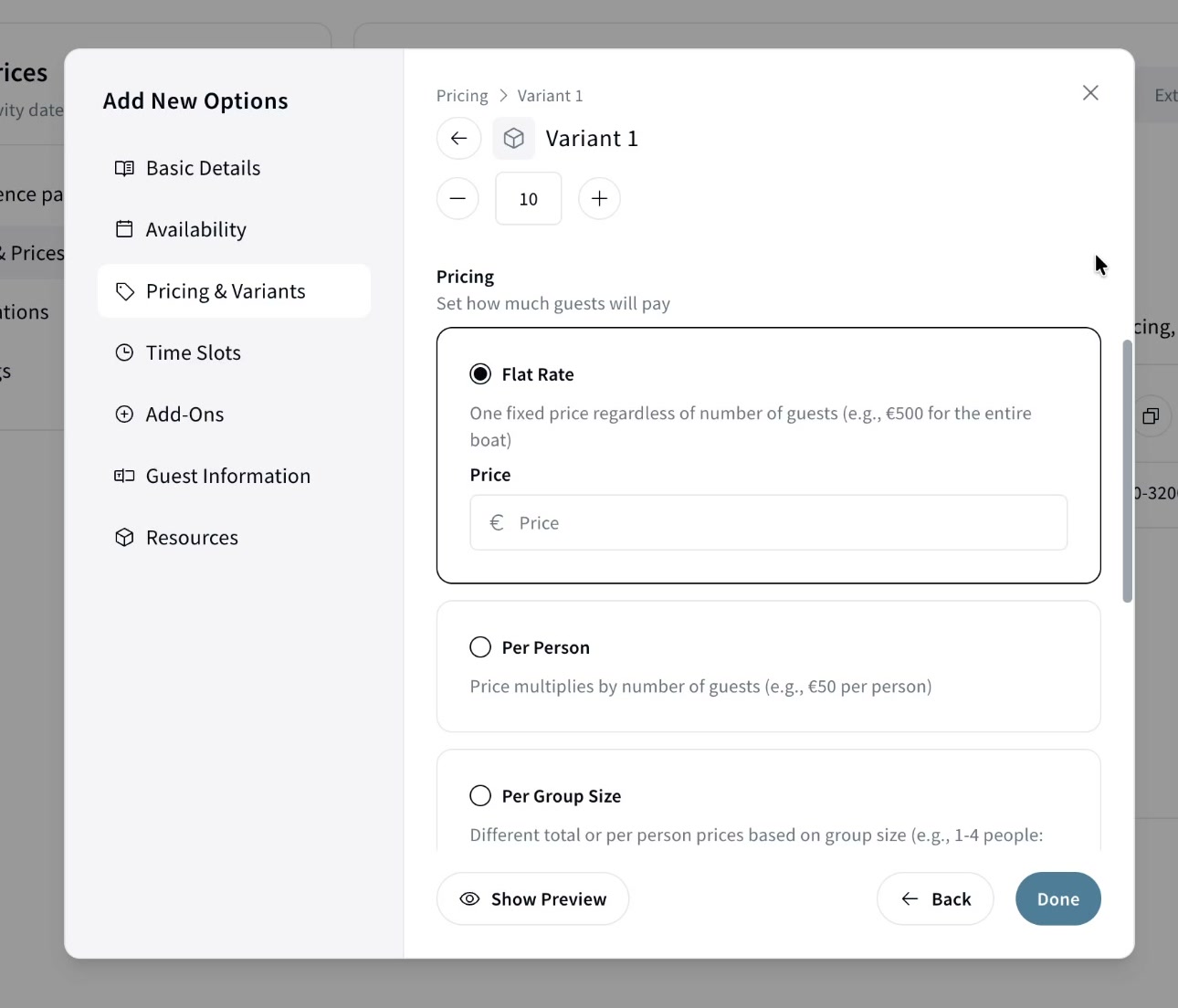
Pricing model. You set one pricing model for the whole option, you can't mix models across variants (e.g. one variant a rental, another per person). All variants share the model set on the first variant.
Flat Rate — one fixed price regardless of guests (e.g. €500 for an entire boat).
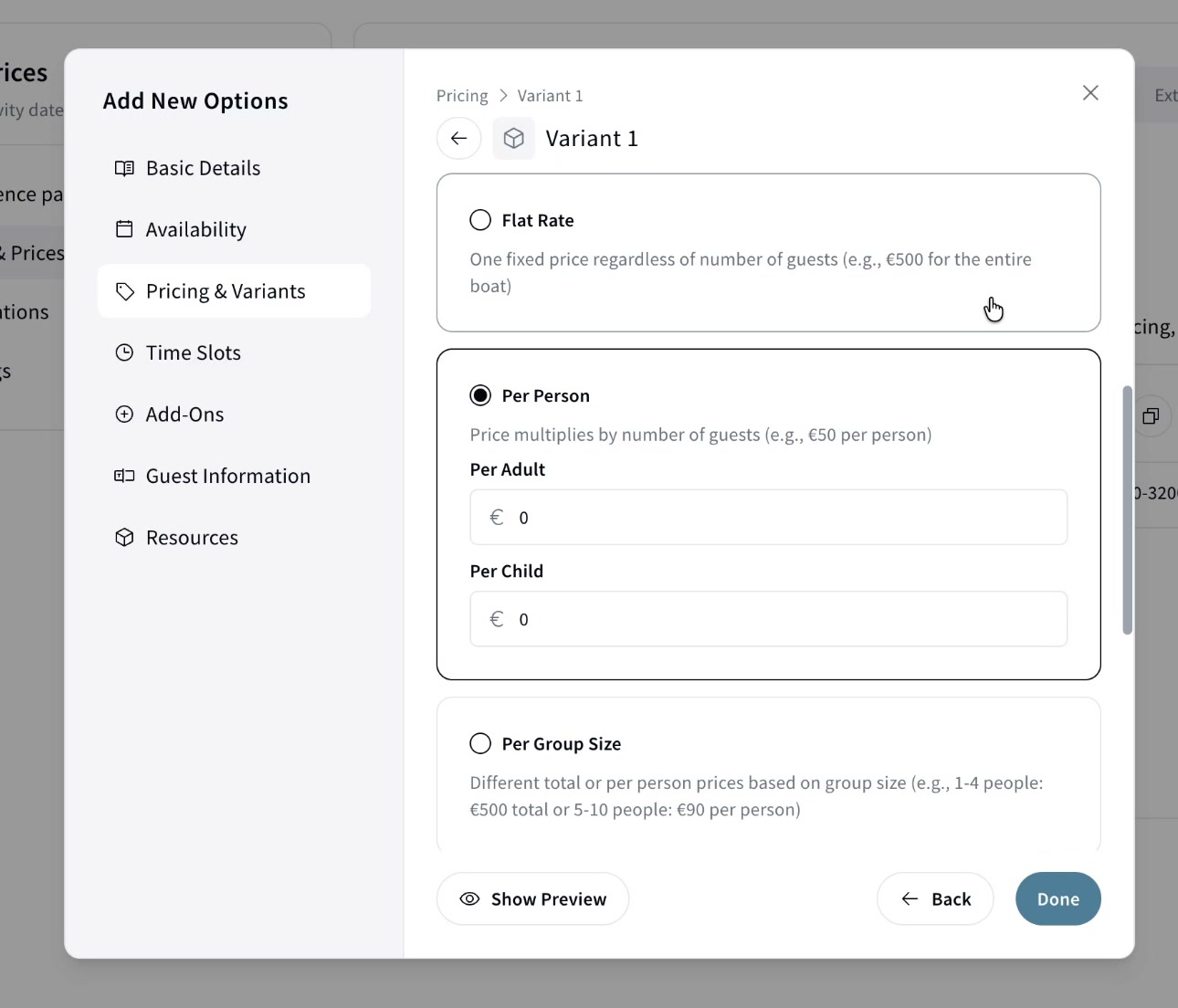
Per Person — a price per participant type defined in Step 1 (e.g. €50/adult, €25/child, so two adults = €100).
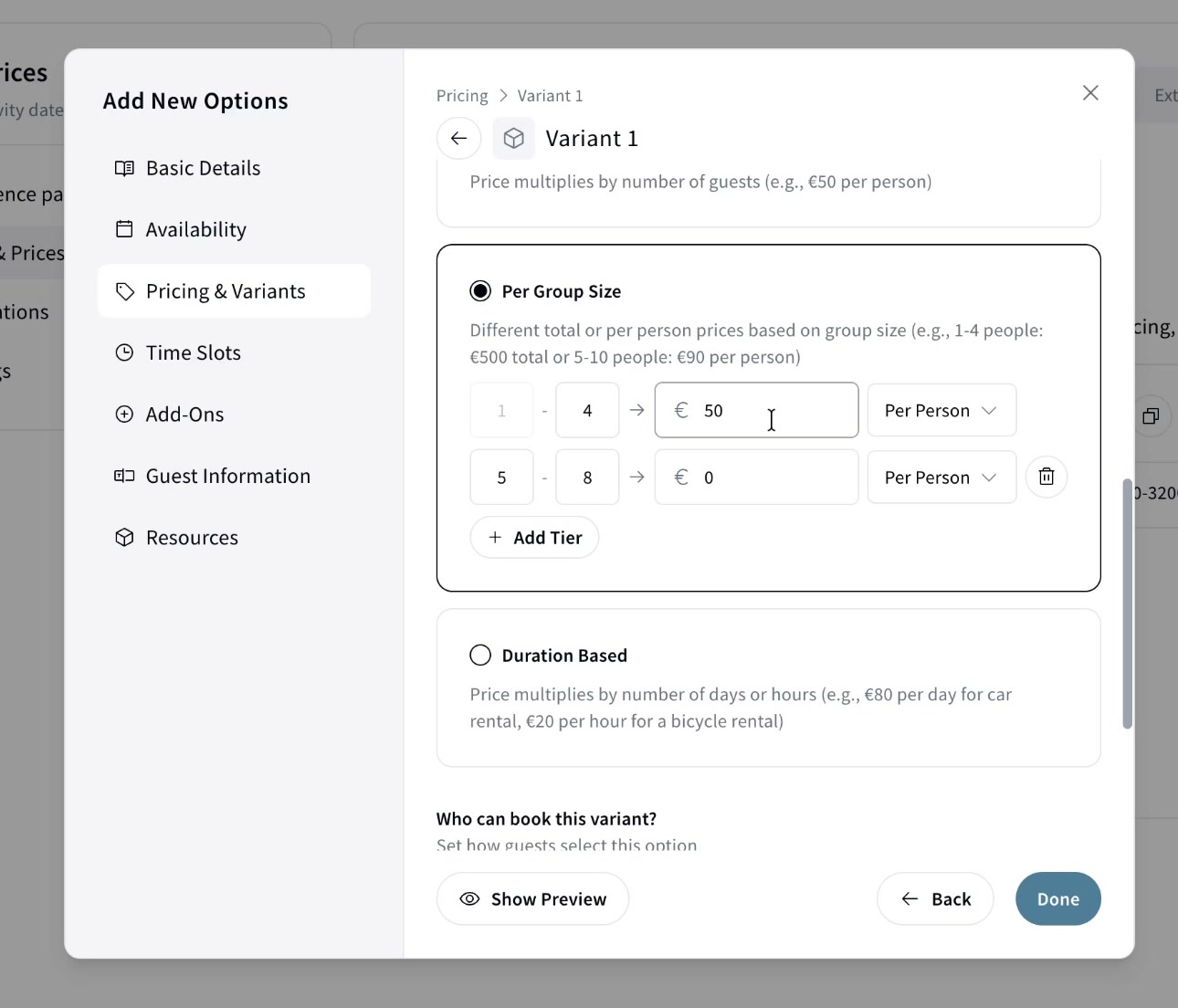
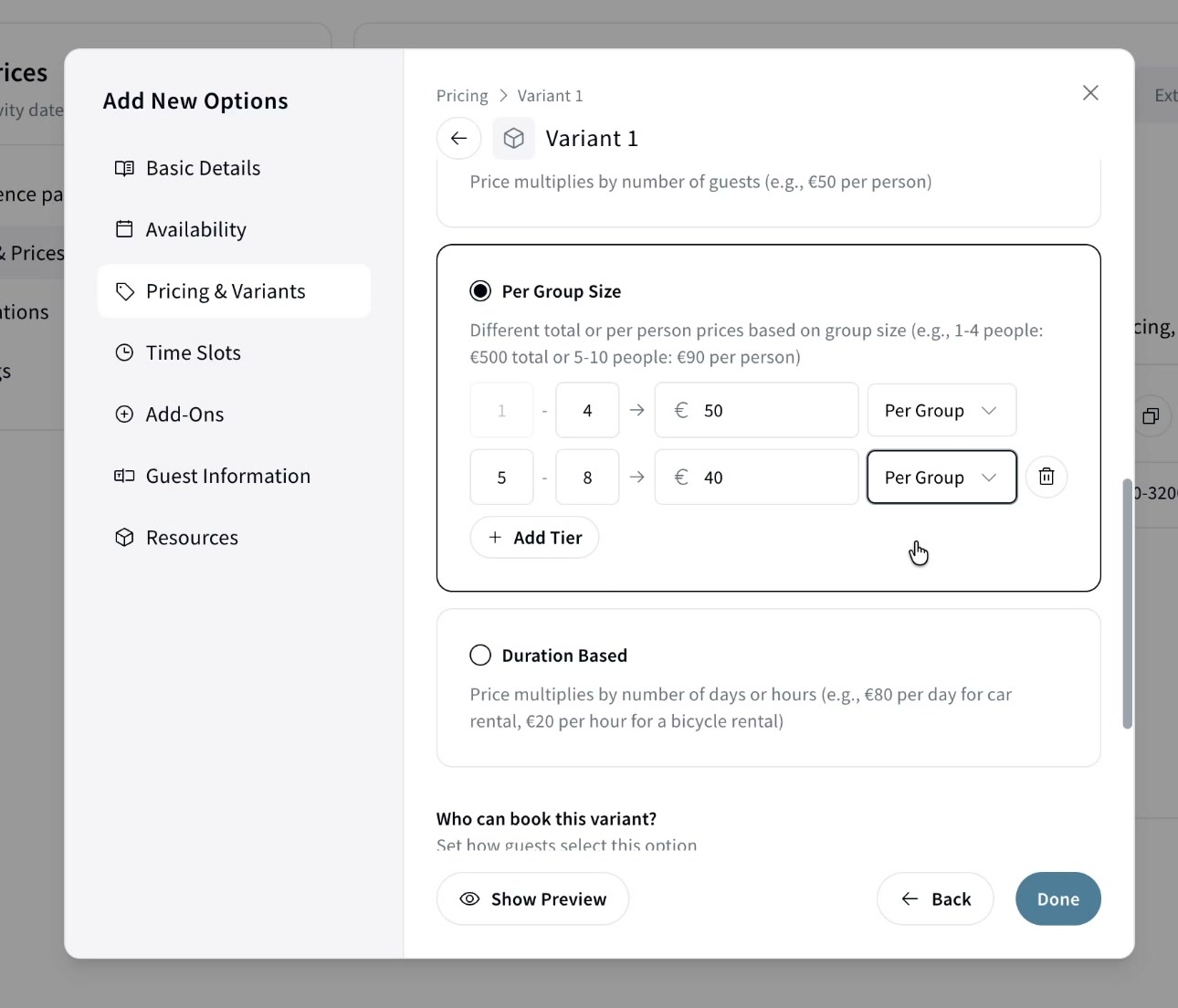
Per Group Size — prices by group size, with volume discounts baked in. Each tier can be priced per person (e.g. 1-4 people at €50/person = €200 for four, 5-8 people at €40/person) or as a per-group total (e.g. 1-4 people = €50 total, 5-8 = €40 total).
Duration-Based — for rentals. Charge an amount per 5 / 15 / 30 / 45 minutes, hour, or day, and the guest picks how long to rent. A bike might be per hour, a court per 30 minutes.
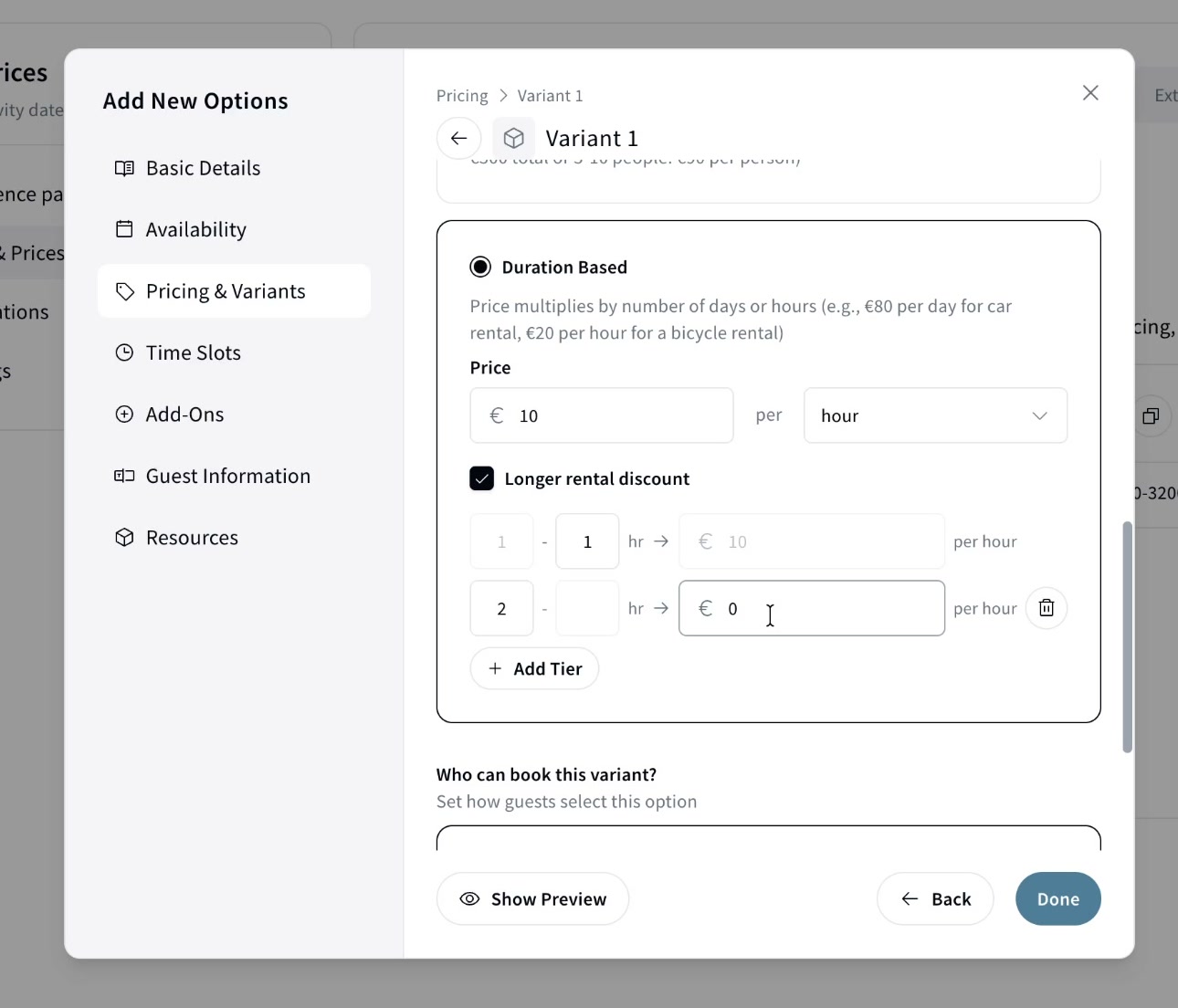
You can add longer rental discounts to tier the price: e.g. cars at €50/day for 1-5 days, dropping to €40/day for 6-8 days.
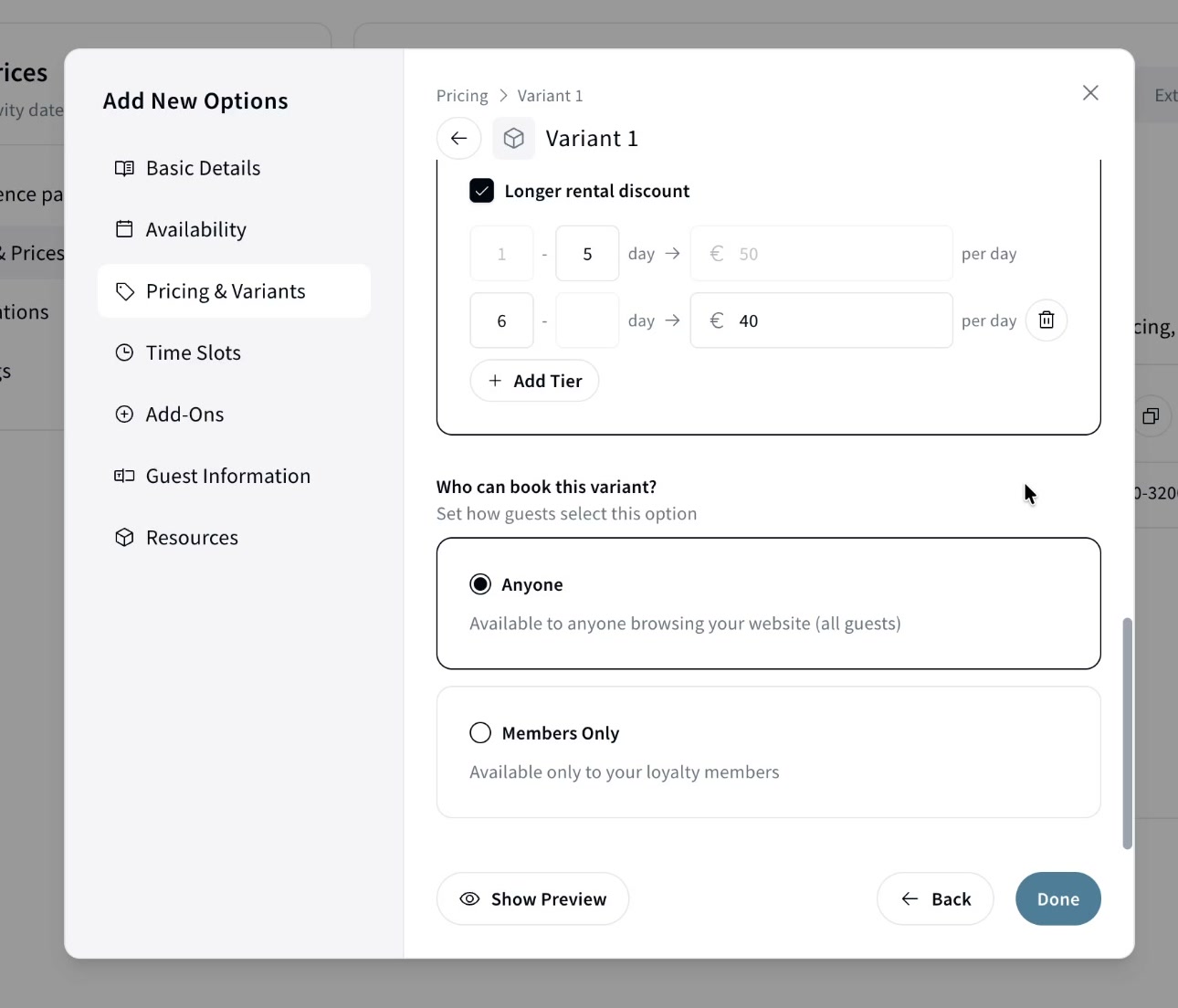
Who can book this variant. Set visibility to Anyone (all guests browsing your site) or Members Only (your loyalty members). Use Members Only to offer a cheaper or different deal to a hotel loyalty or club program.
After saving, the variant appears in the list. Click Show Preview to see the guest booking view.
4️⃣ Time Slots
First set the Experience duration (e.g. 4h 30m). Then choose a Start time type.
⚠️ Duration-Based pricing: the Experience duration field is hidden because the guest sets the duration themselves.
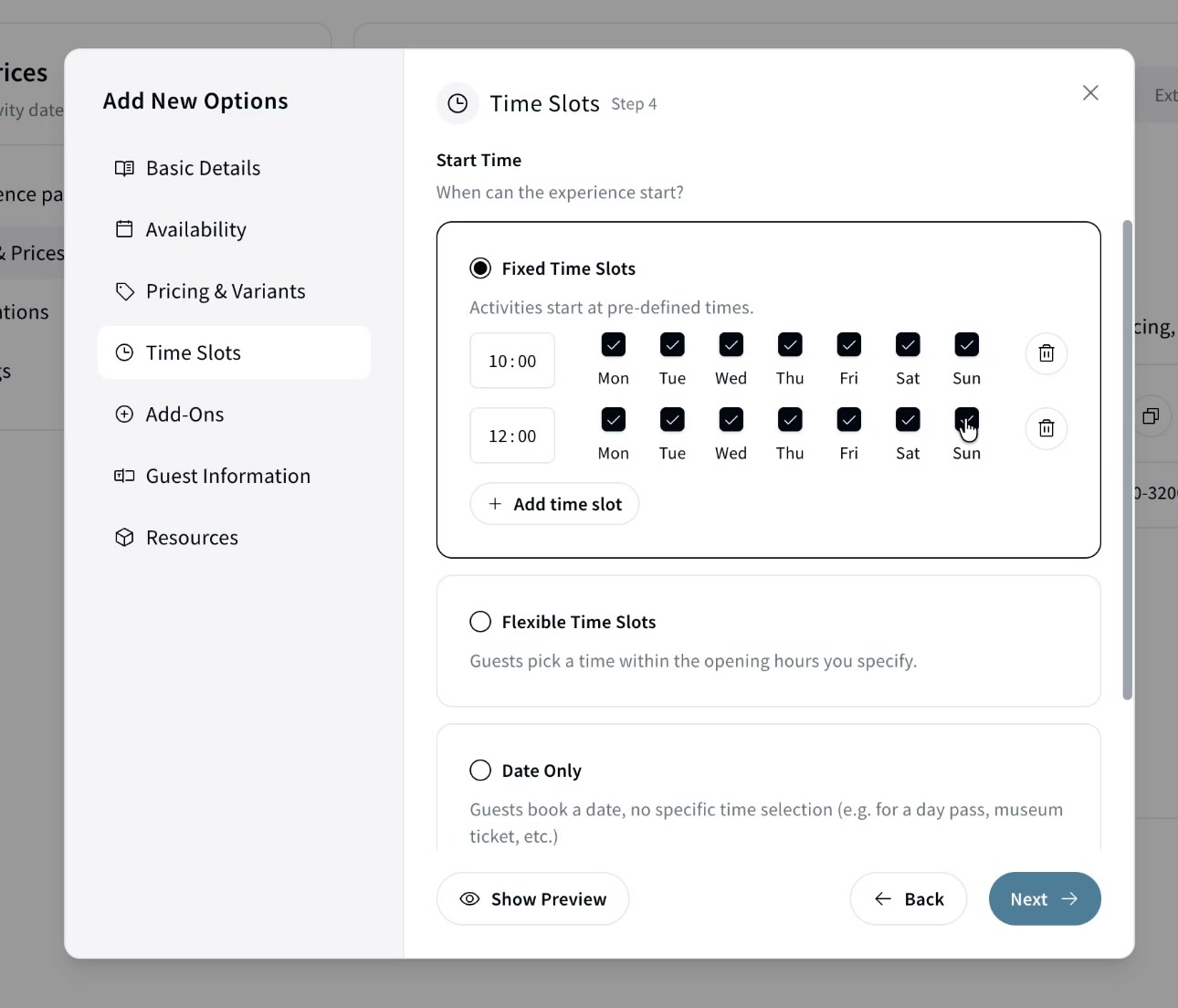
- Fixed Time Slots — predefined start times (e.g. tours at 10:00 and 12:00). Set which days each runs, and add as many slots as you need.
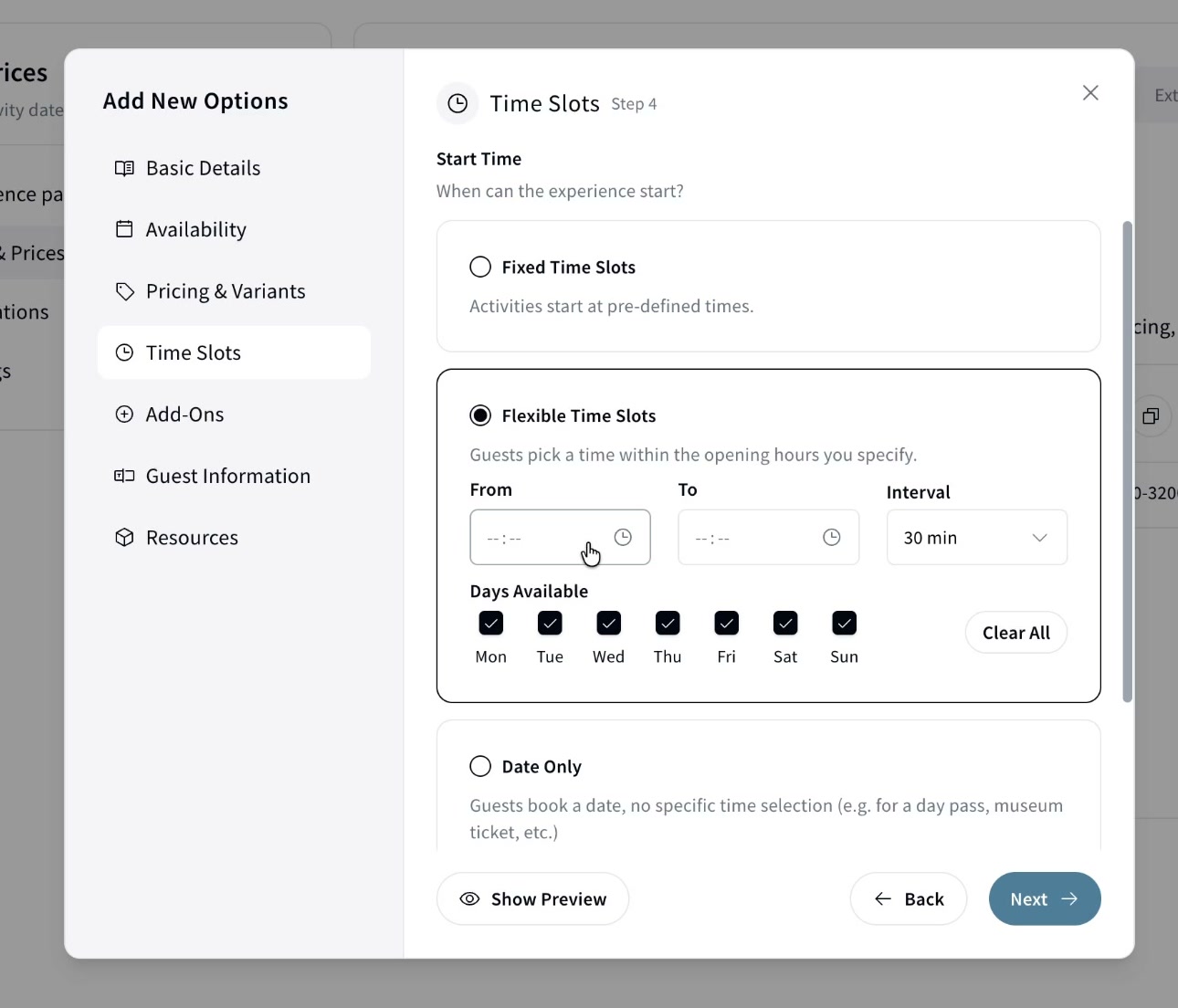
- Flexible — a from/to range (e.g. 08:00-16:00); guests pick when to start, shown at an interval you choose (15/30/45/60 min).
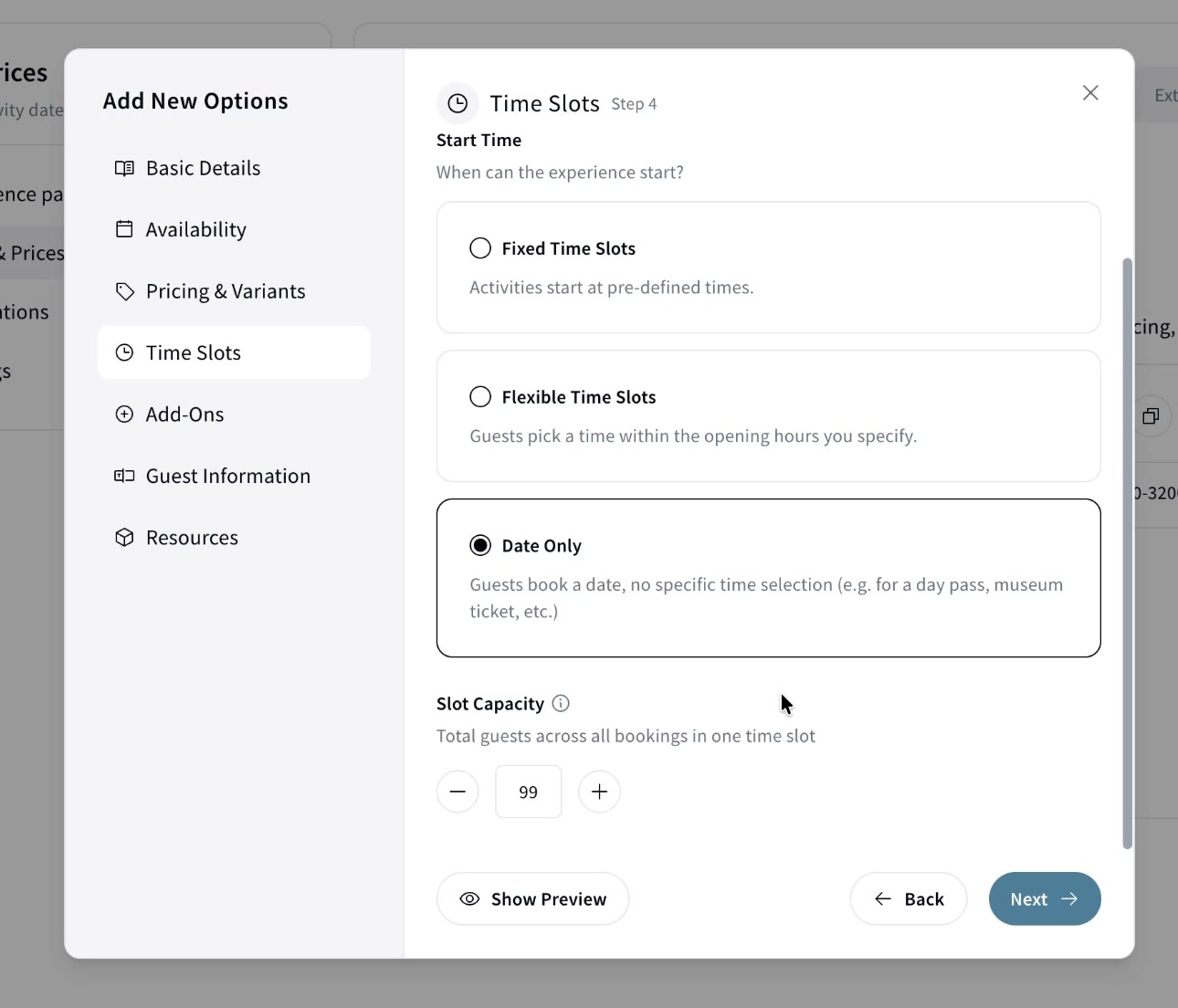
- Date Only — the guest books a whole day with no time (day passes, museum tickets).
Slot capacity is the total guests across all bookings in one time slot. Example: a public walking tour with a slot capacity of 10 and a per-booking limit of 5: one guest books at 11:00, and up to nine others can still join that same slot. (If you set up resources, capacity is managed by resource availability instead.)
5️⃣ Add-Ons
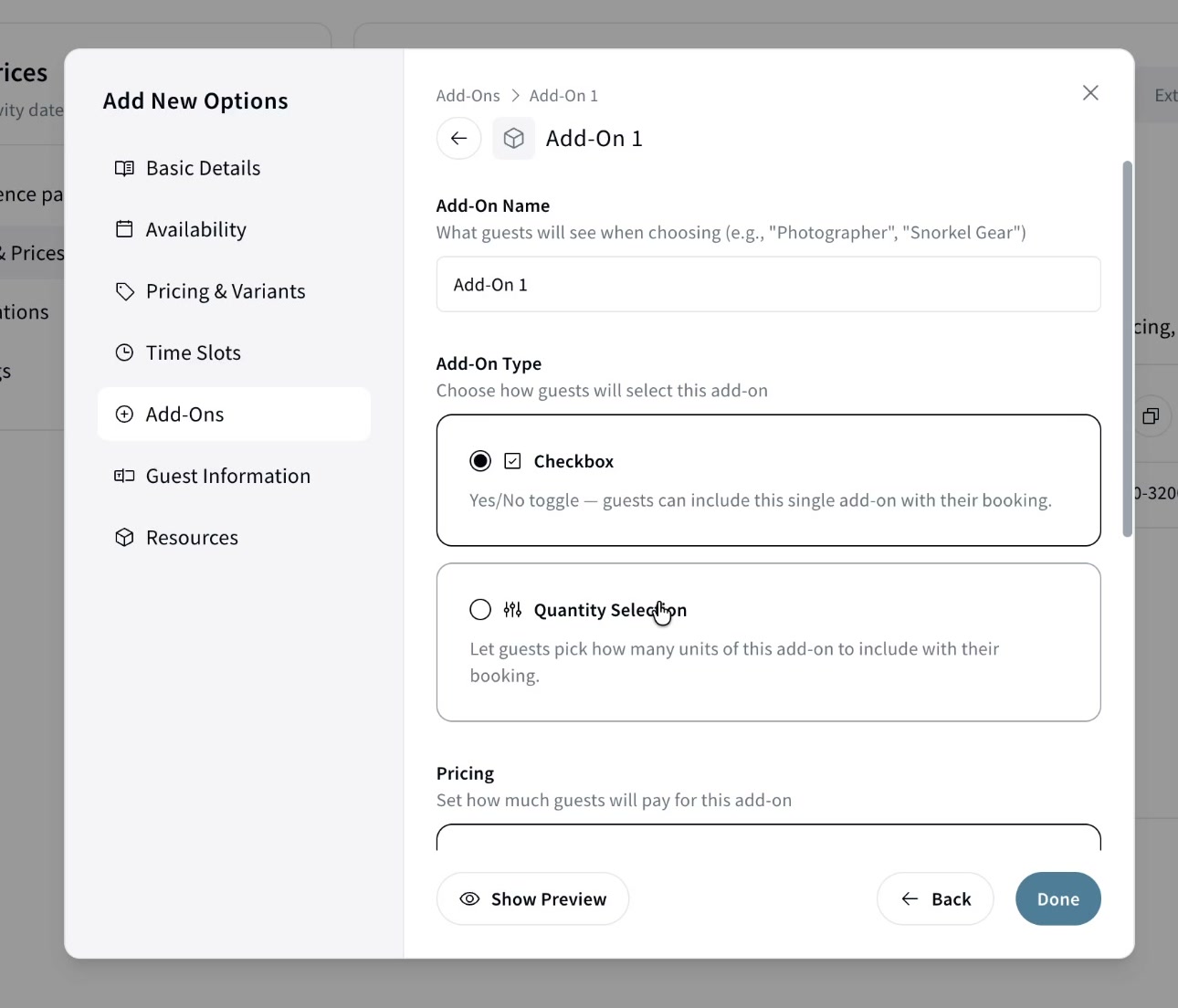
Add-ons are optional extras guests can add. Click Add-On, give it a name, and pick a type:
- Checkbox — a yes/no toggle.
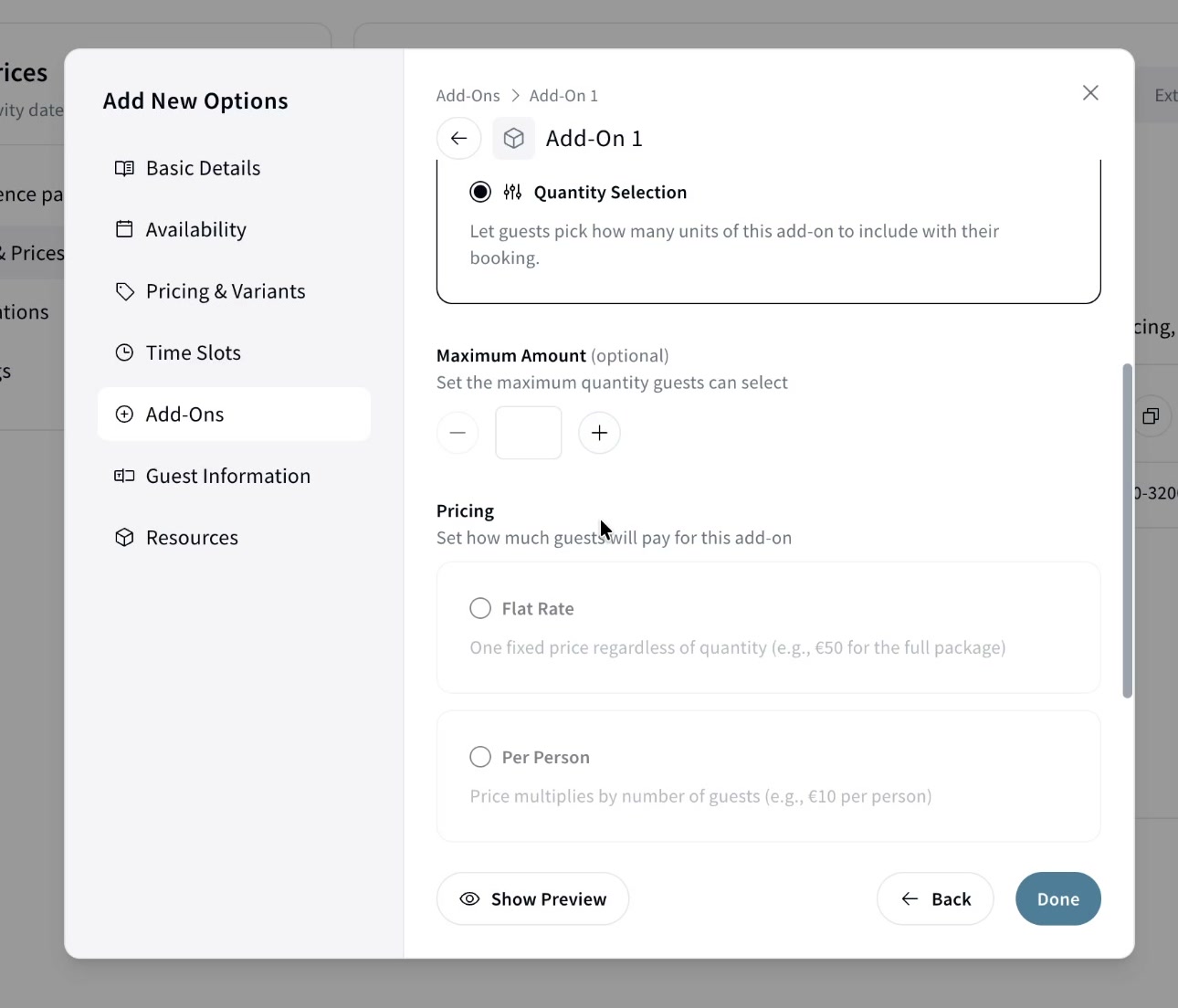
- Quantity Selection — the guest picks how many units (e.g. food packages, where not every guest wants one).
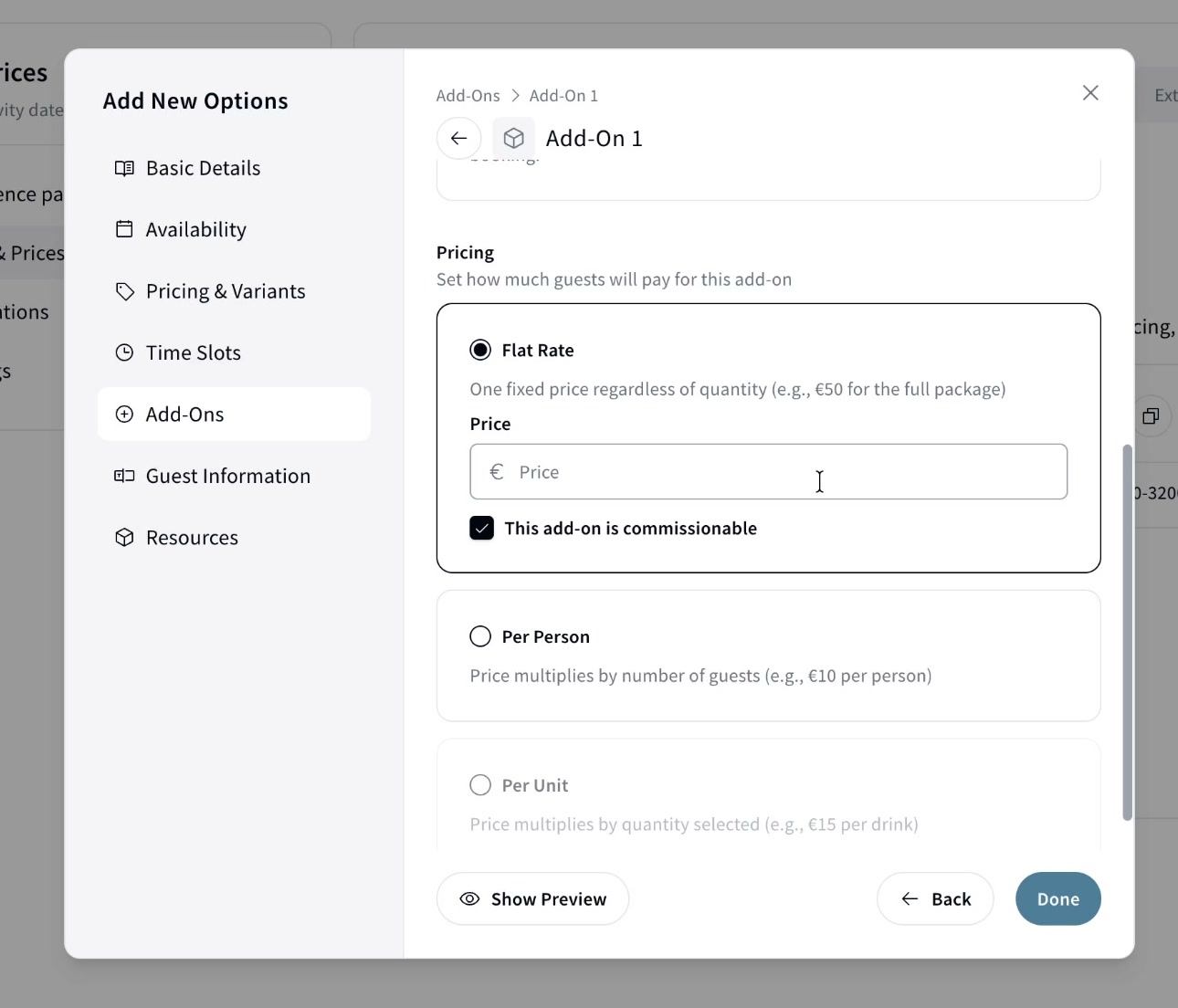
Pricing for a Checkbox add-on: either Flat Rate (one fixed price regardless of guests, e.g. €50 total) or Per Person (multiplied by the number of guests). The This add-on is commissionable checkbox controls whether commission is earned on it in the hotel/partner relationship.
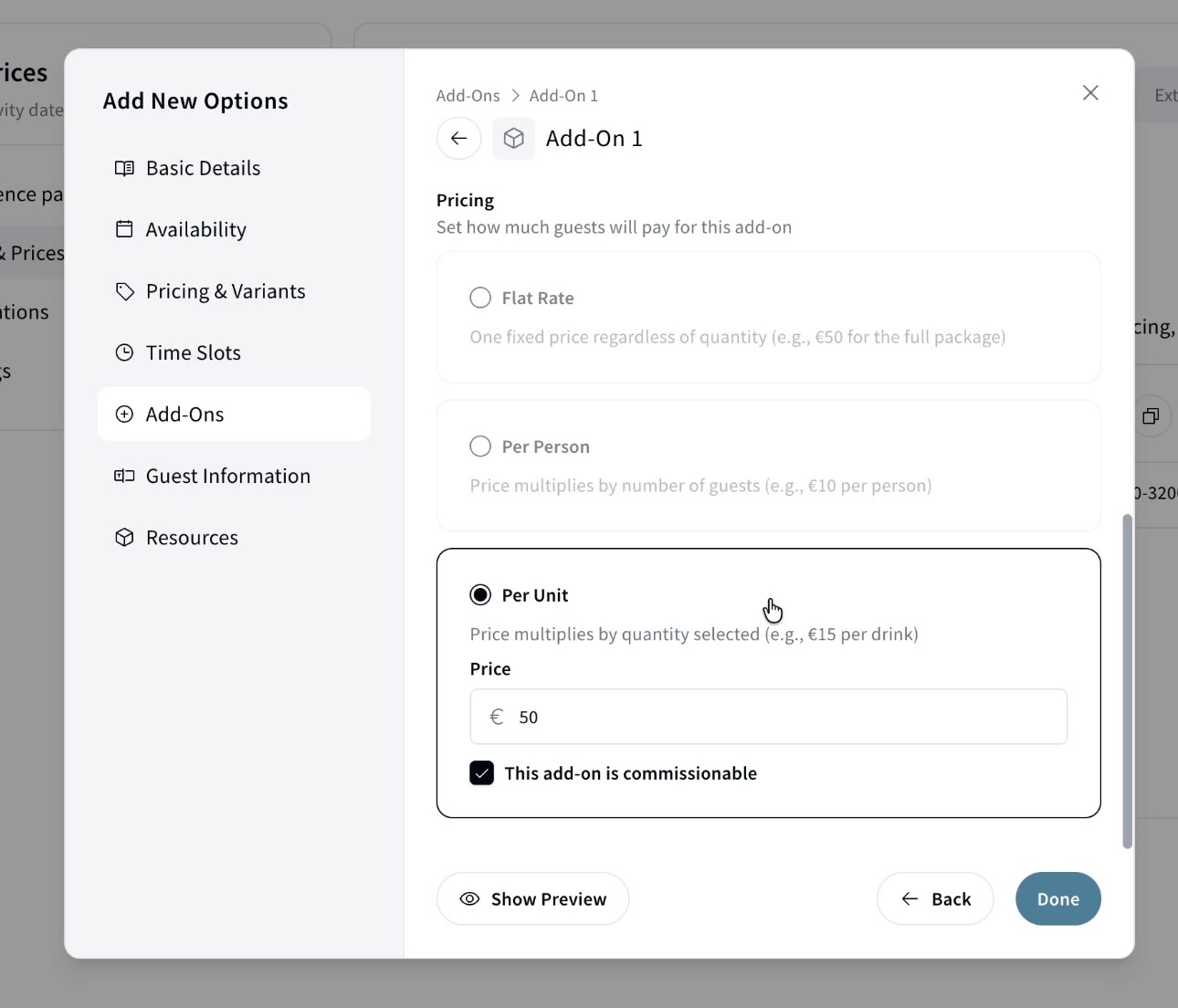
Pricing for a Quantity Selection add-on: set a maximum amount if you want, then price per unit (price × quantity selected). E.g. drinks at €15 each, guest picks 10 = €150.
6️⃣ Guest Information
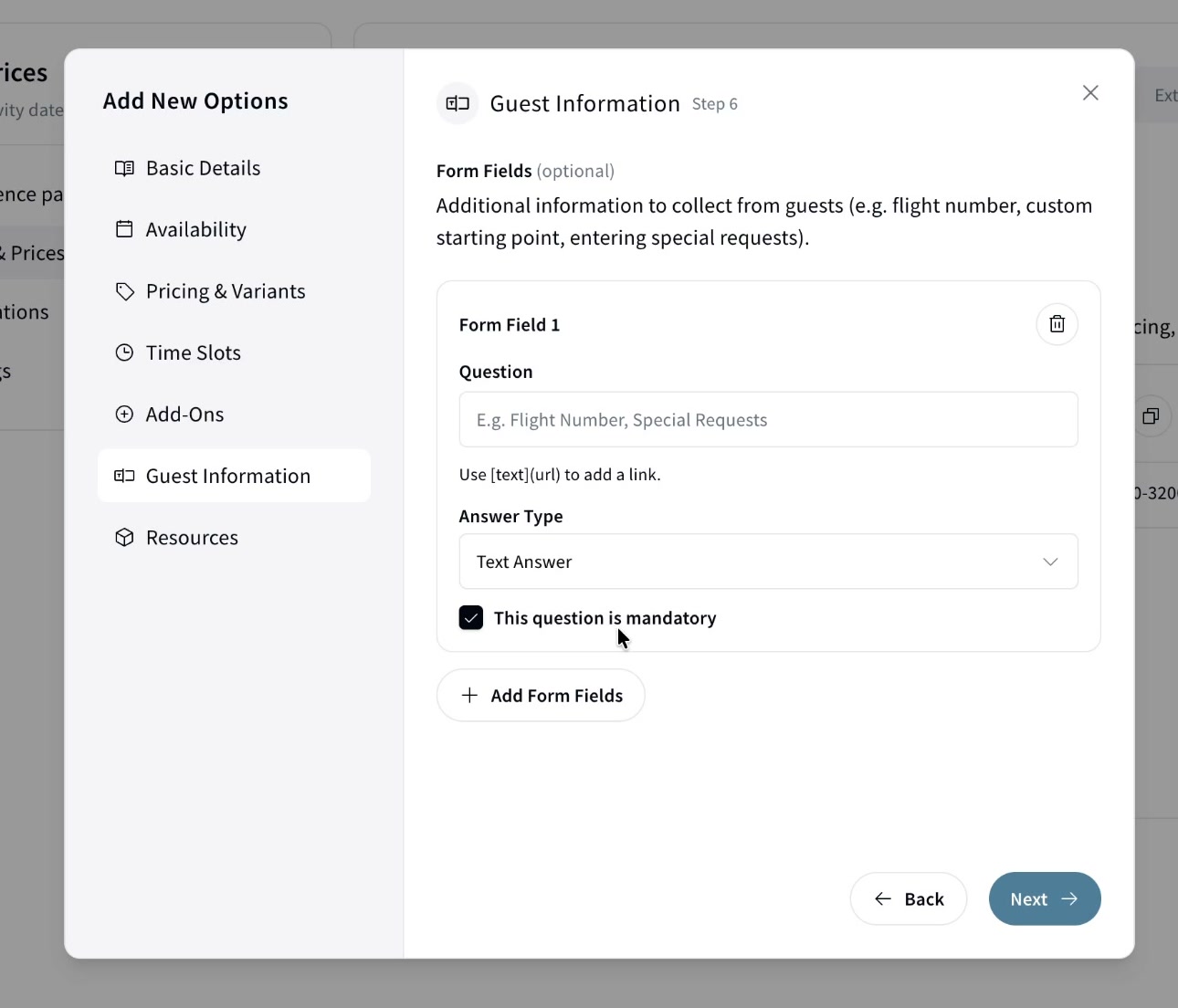
Collect extra form fields from guests (flight number, custom starting point, special requests). Each field can be a text answer or a checkbox, and can be mandatory or not. You can include URLs in the question, useful for compliance such as accepting terms.
7️⃣ Resources
Resources prevent double-booking when multiple experiences share the same asset (the same car across transfers, the same boat across excursions, a massage therapist, a spa room).
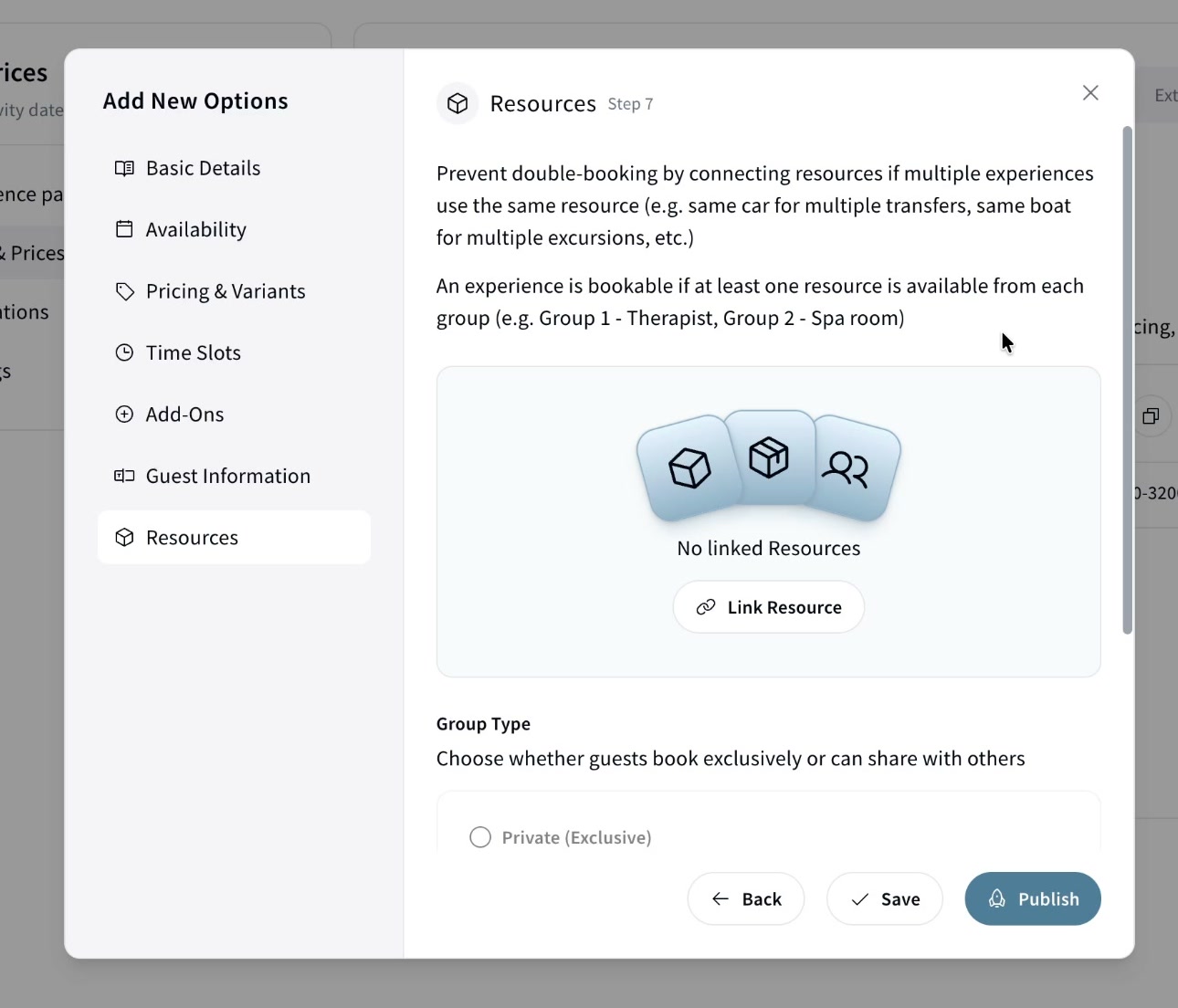
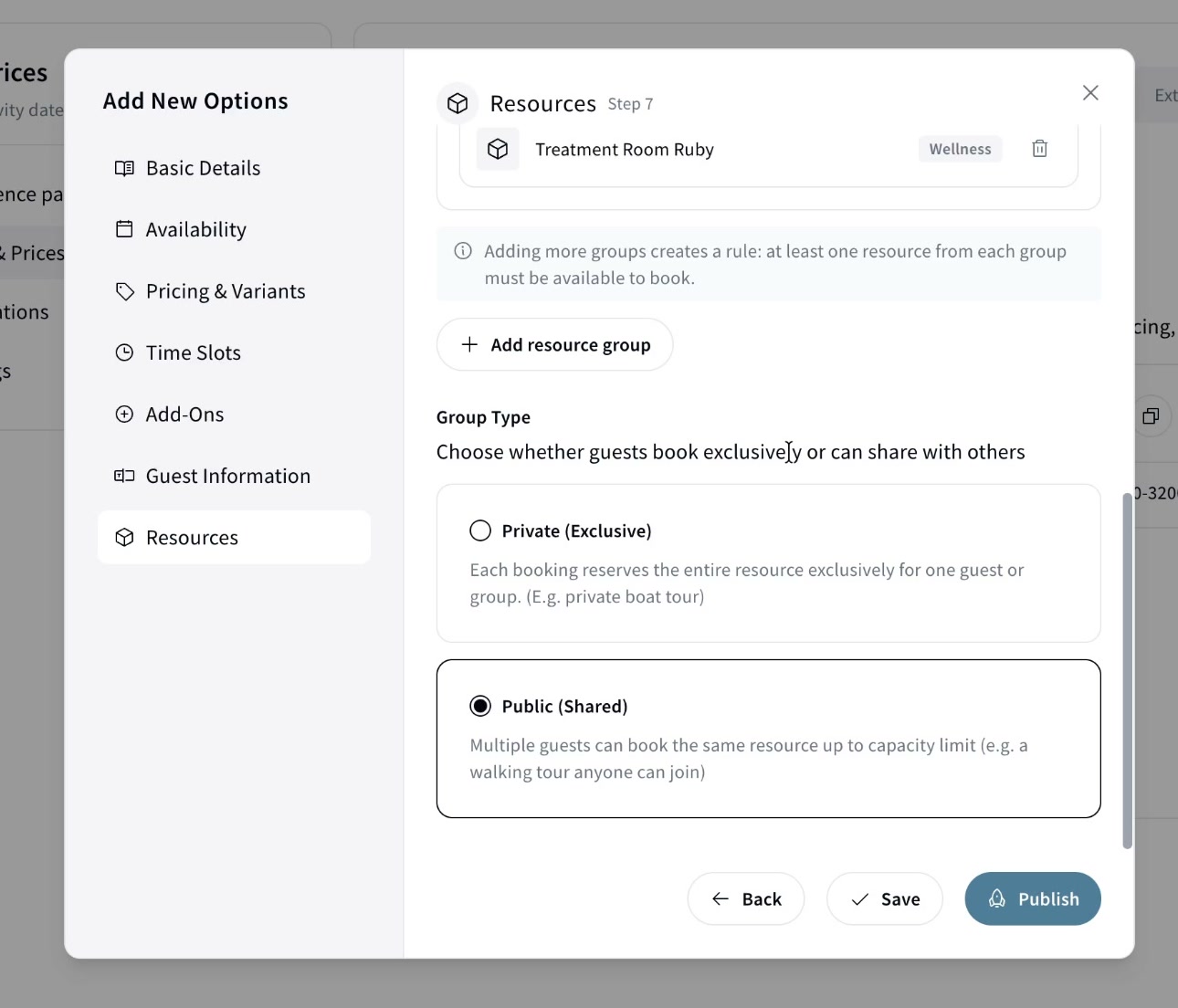
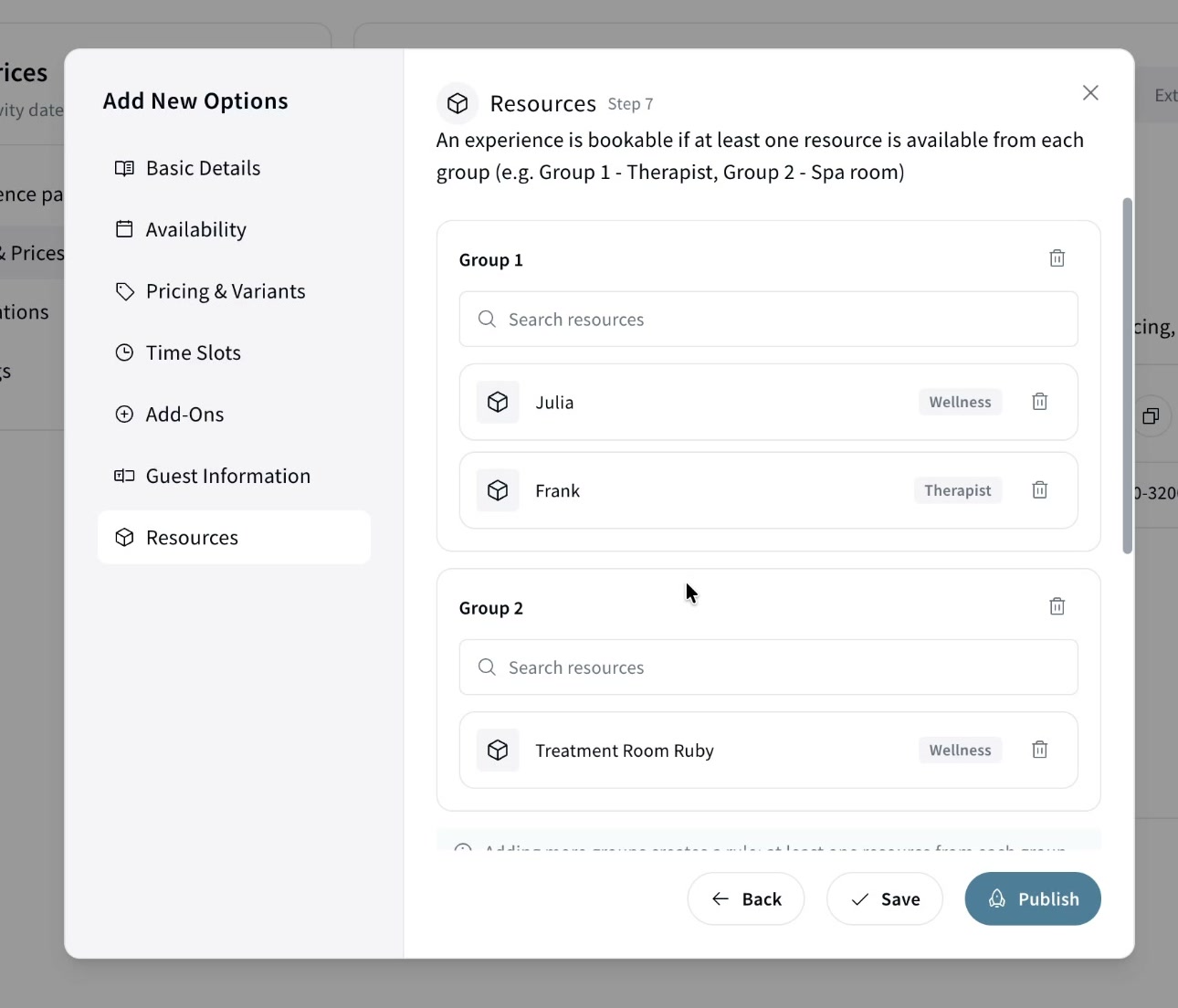
Click Link Resource and add resources into groups. Groups work as an AND condition: one resource from each group must be available to make a booking. Example: Group 1 = therapists (Julia, Frank), Group 2 = Treatment Room Ruby. To book, one therapist and the room must be free. You can add multiple resource groups.
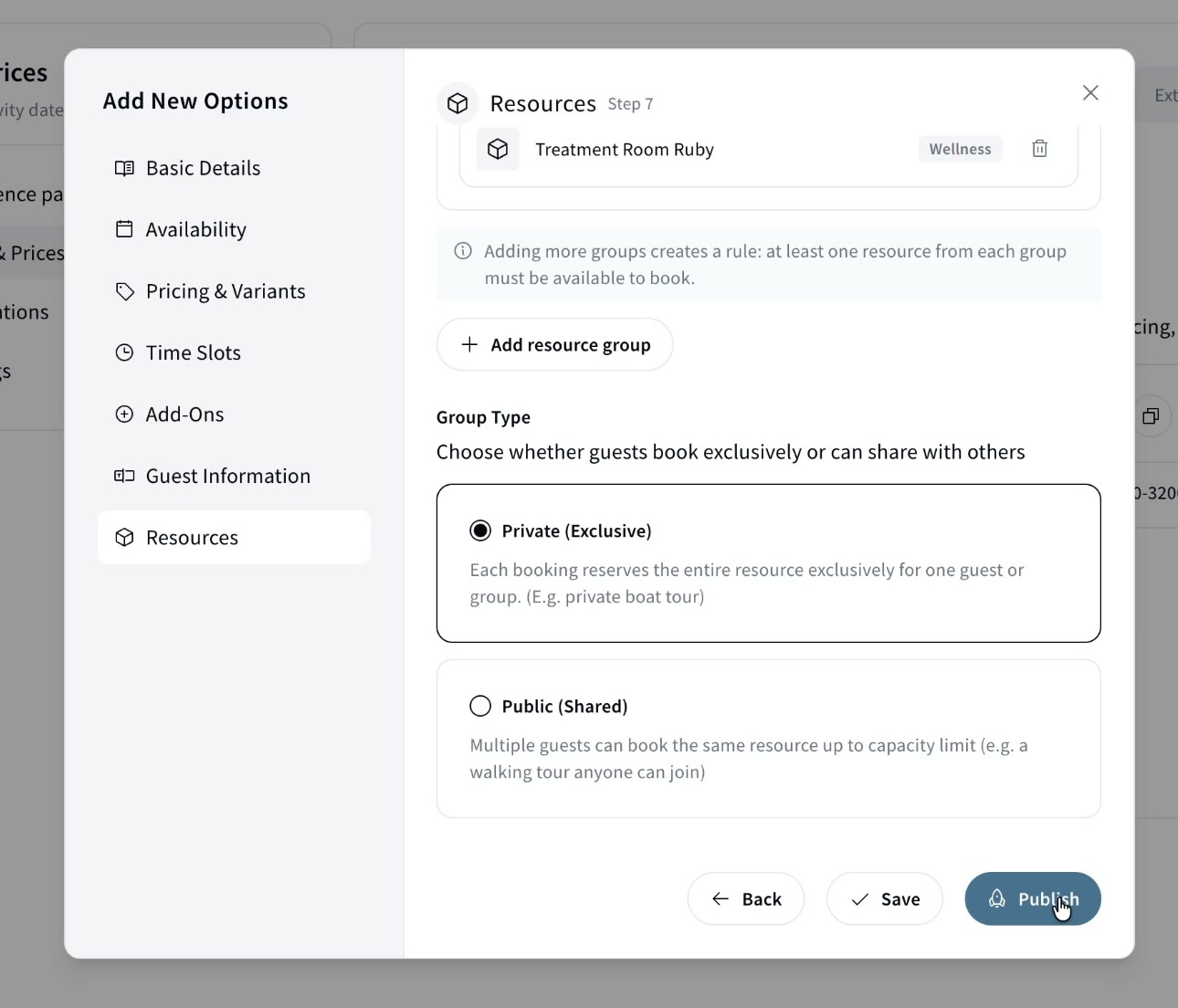
Once resources are linked, you can set the Group Type:
- Private (Exclusive) — once booked, the resource is reserved solely for that booking, even for one person (e.g. a private massage).
- Public (Shared) — multiple guests share the resource up to capacity (e.g. a public boat tour anyone can join). This is the default.
Then click Publish.